ABB Robot Configuration
Before using Pick[+] with an ABB robot, the controller must be properly configured to allow remote communication. This section covers the required prerequisites and how to verify that your controller meets them.
Supported Controllers
| Controller | RobotWare Version | RWS Version | Status |
|---|---|---|---|
| IRC5 | 6.x | RWS v1 | Supported |
| OmniCore | 7.x | RWS v2 | Coming Soon |
Requirements
Before proceeding, make sure the following requirements are met:
- RobotWare 6.x installed on the IRC5 controller
- Option 616-1 PC Interface installed on the controller
- ABB RobotStudio installed on the PC (for configuration and testing)
- Network connectivity between the robot controller and the Pick[+] server PC
You will also need the following information during setup:
- Pick[+] RAPID module file provided by BitMetrics
- Pick[+] server PC IP address
Verify controller version
Before configuring the integration, confirm that your controller meets the requirements using the FlexPendant.
-
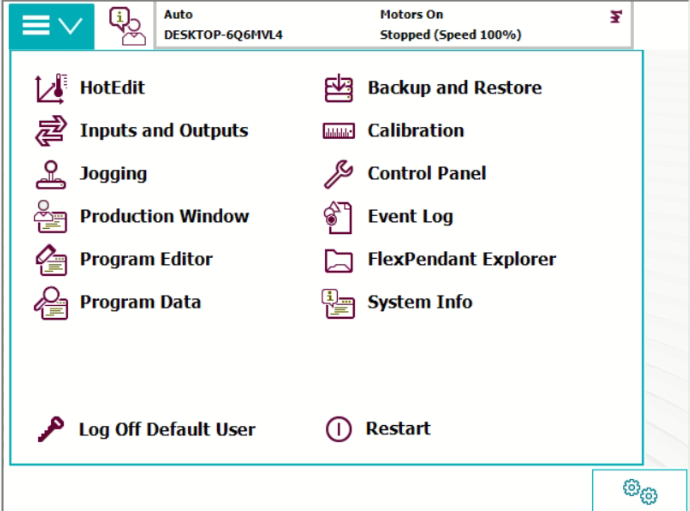
On the FlexPendant main menu, tap System Info.
-
Expand System properties and confirm the RobotWare version is
6.x.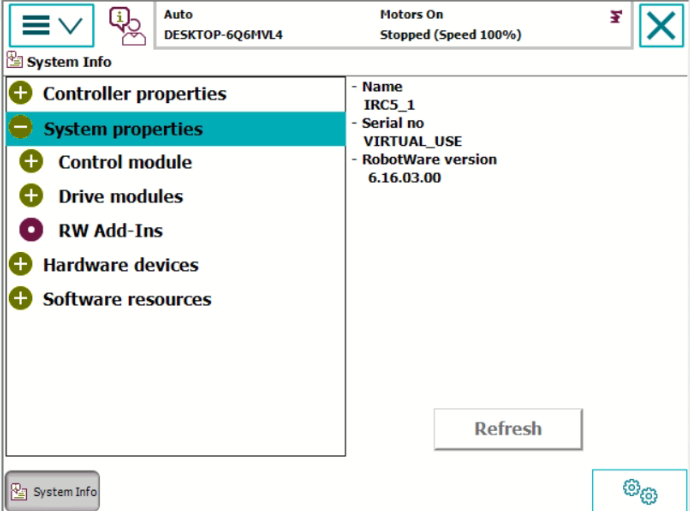
-
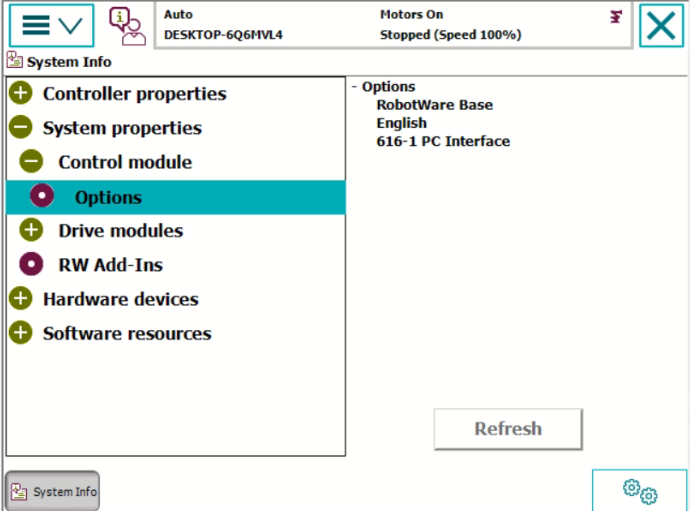
Expand Control module → Options and verify that 616-1 PC Interface is listed.
WARNING
If the 616-1 PC Interface option is not listed, the controller cannot communicate with Pick[+] over the network. Contact your ABB distributor to add this option to your controller license.
Network Configuration
The robot controller must be able to reach the Pick[+] server PC over the network. Make sure the following conditions are met:
- The robot IP address is reachable from the Pick[+] PC
- Both devices are on the same subnet or properly routed network
- TCP traffic is allowed on port 30040
To set the controller's IP address (via the Boot Application / X-start), see IP Configuration.
Firewall Configuration
Pick[+] communicates with the robot over TCP port 30040. If the robot throws a 101 error, the connection to the Pick[+] PC is almost always the cause. Check the following:
- Pick[+] is running: Make sure the Pick[+] backend is active on the PC and listening on port
30040. - Windows Firewall: Windows blocks inbound TCP traffic by default. Create an inbound rule on the Pick[+] PC to allow port
30040:- Open Windows Defender Firewall with Advanced Security.
- Click New Inbound Rule.
- Select Port → TCP → enter
30040as the specific local port. - Select Allow the connection and apply it to all network profiles.
- IP Configuration in RAPID: Ensure the
PP_Configureinstruction at the start of your main routine points to the exact IPv4 address of the Pick[+] PC.
Virtual Controller (RobotStudio)
If you are using a RobotStudio Virtual Controller instead of a physical IRC5, external connections must be explicitly whitelisted in the vcconf.xml configuration file.
Navigate to the following folder on the PC running RobotStudio:
C:\Users\<USER>\AppData\Roaming\ABB Industrial IT\Robotics IT\RobVC\
Open or create the vcconf.xml file and paste the following configuration, replacing the IP with the Pick[+] PC address:
<VCConfiguration>
  <RemoteVCConfiguration PublicationEnabled="true" />
  <hosts>
    <host ip="<Pick[+] PC IP address>"/>
  </hosts>
</VCConfiguration>
Up to 10 IP addresses can be added. Restart RobotStudio after saving changes.
Install the Pick[+] RAPID Module
Pick[+] communicates with the ABB controller through a RAPID module provided by BitMetrics. The module is loaded from RobotStudio on the PC:
- Open RobotStudio and navigate to the RAPID tab.
- In the RAPID task tree, right-click the task where you want to install the module (usually
T_ROB1). - Click Load Module, browse to the Pick[+] module file (
PicPlusRw1.sys) on your PC, and click OK.
The Pick[+] module is now installed in the RAPID task.
File provided by BitMetrics
The RAPID module file is supplied as part of the Pick[+] installation package. Contact BitMetrics if you do not have this file.