References
References are the objects and part variants that Pick[+] can recognize and pick, each one registered separately so the AI model can tell it apart from every other object. Or you can add all the variants of an object to the same reference to treat them as a single type of object.
A reference groups together the scans and 3D models captured for one specific part. See Data Generation for how references relate to scans and 3D models. The References tab lists every reference that has been registered so far.
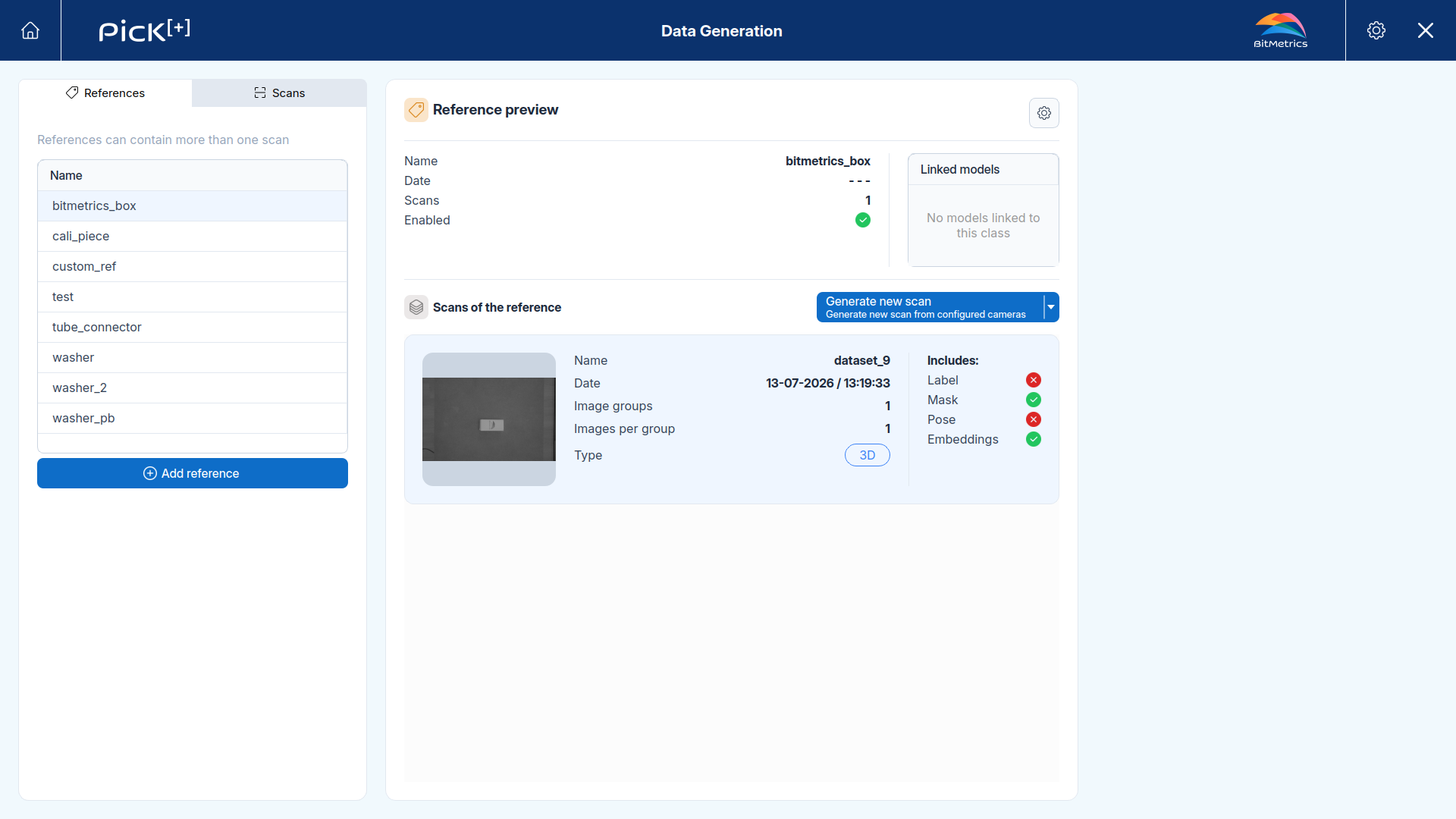
| Parameter | Description |
|---|---|
| Name | The reference's name |
| Date | The reference's creation date |
| Scans | The number of scans that make up this reference; more scans generally give the AI model more visual coverage of the object to match against |
| Enabled | Whether the reference can be used in Similarity-Based Picking applications, an application type that identifies objects by matching them against your references instead of training a dedicated model for each one, see Reference Settings below |
| Linked 3D models | Lists the 3D Models associated with this reference, needed to place pick points on it |
Linked scans
Below the parameters, Scans of the reference lists every scan that belongs to this reference as a card showing its own name, capture date, image groups, images per group, and type (2D or 3D), along with the annotations generated for it, see Annotations.
Use the Generate new scan button (and its dropdown) to add more scans to this reference, either by capturing a new one, adding an existing scan, or uploading one.
New Reference
Creating a reference means adding a new object for Pick[+] to recognize. Click Add reference at the bottom of the left panel, then name the new reference and choose how to add scans to it:
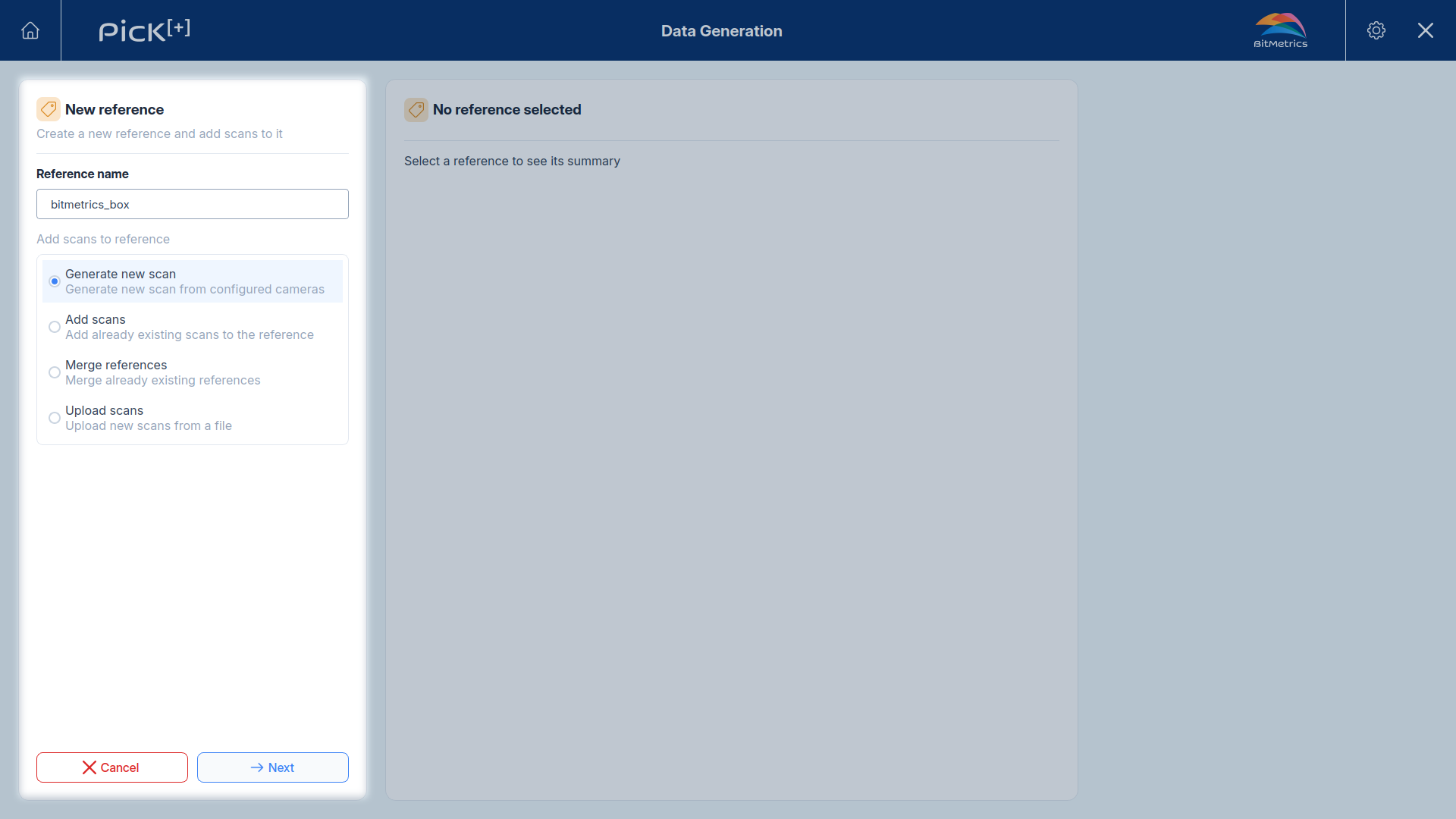
Generate new scan
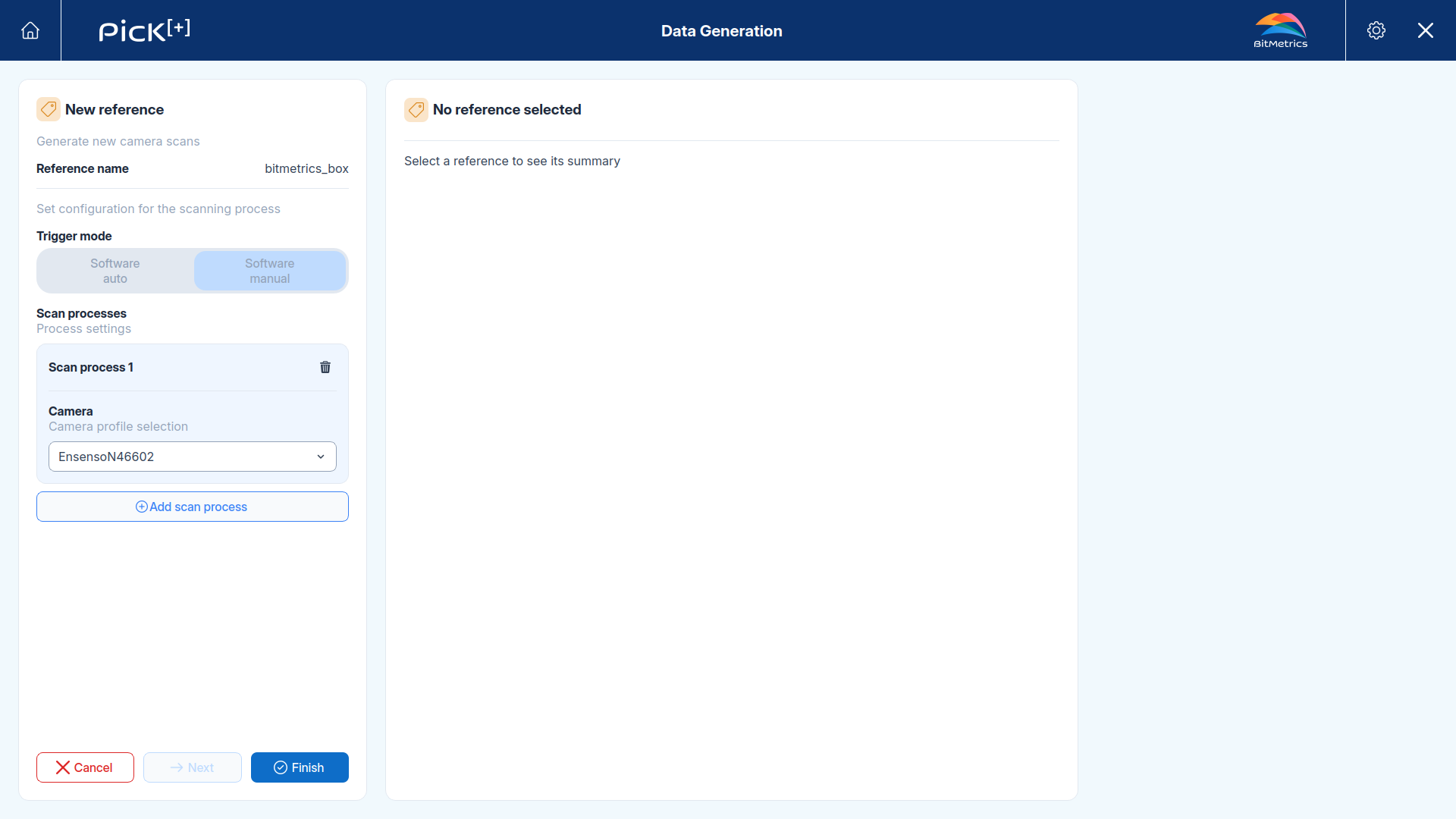
Scans the physical object using the configured cameras, creating both the reference and its first scan in one step. Once you've named the reference, you move on to the same scanning process used when capturing a standalone scan.
Add scans
Pick one or more scans already in the data repository and add them to the new reference, whether or not they already belong to other references.
Merge references
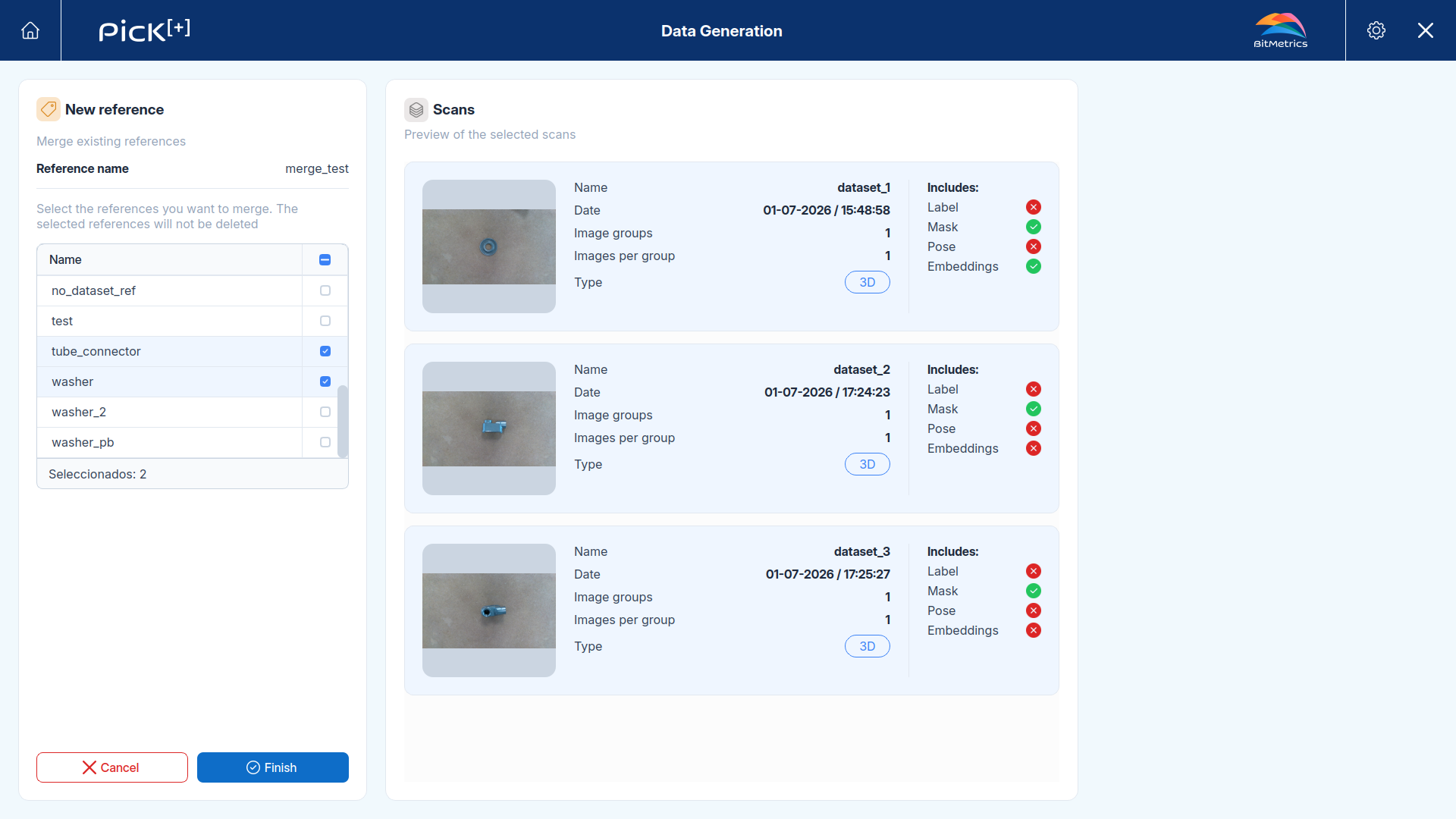
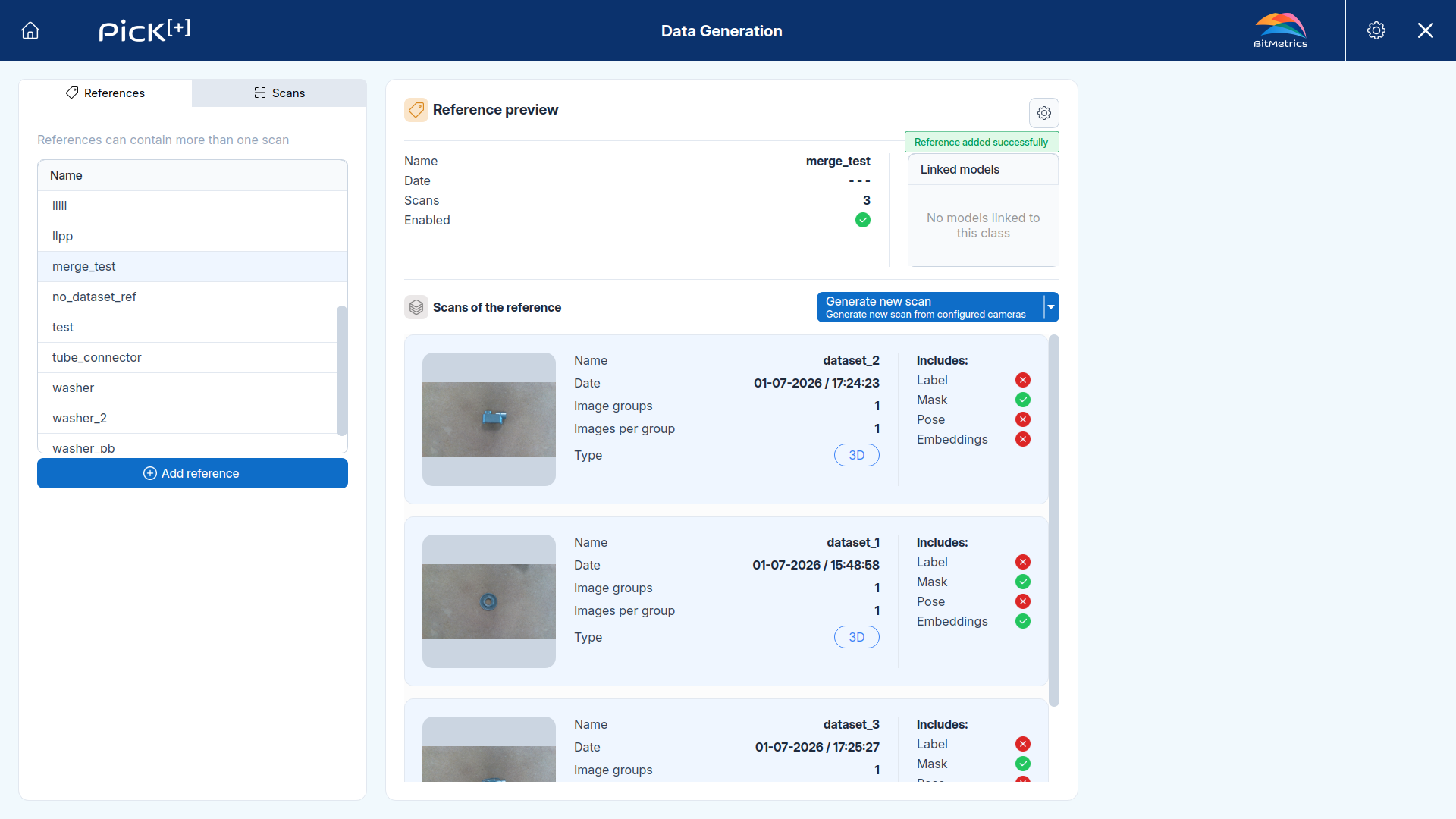
Select two or more existing references; the new reference inherits all of their scans. The original references are not deleted. Useful when you registered variants of the same part separately but decide the AI model should treat them as one class.
In this example, two references were selected for the merge, one with 1 scan and the other with 2 scans, so the new reference ends up with all 3 scans.
Upload scans
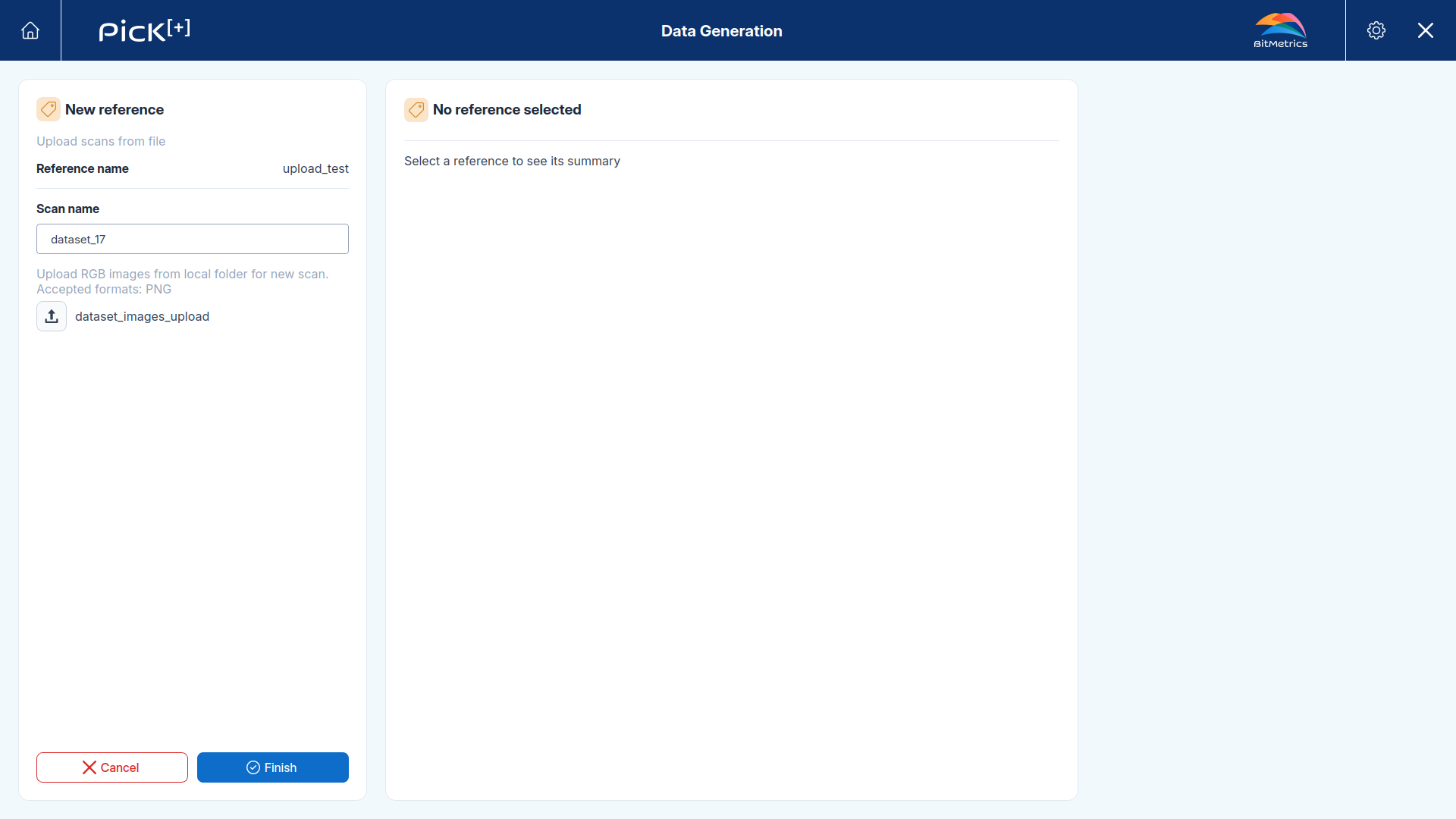
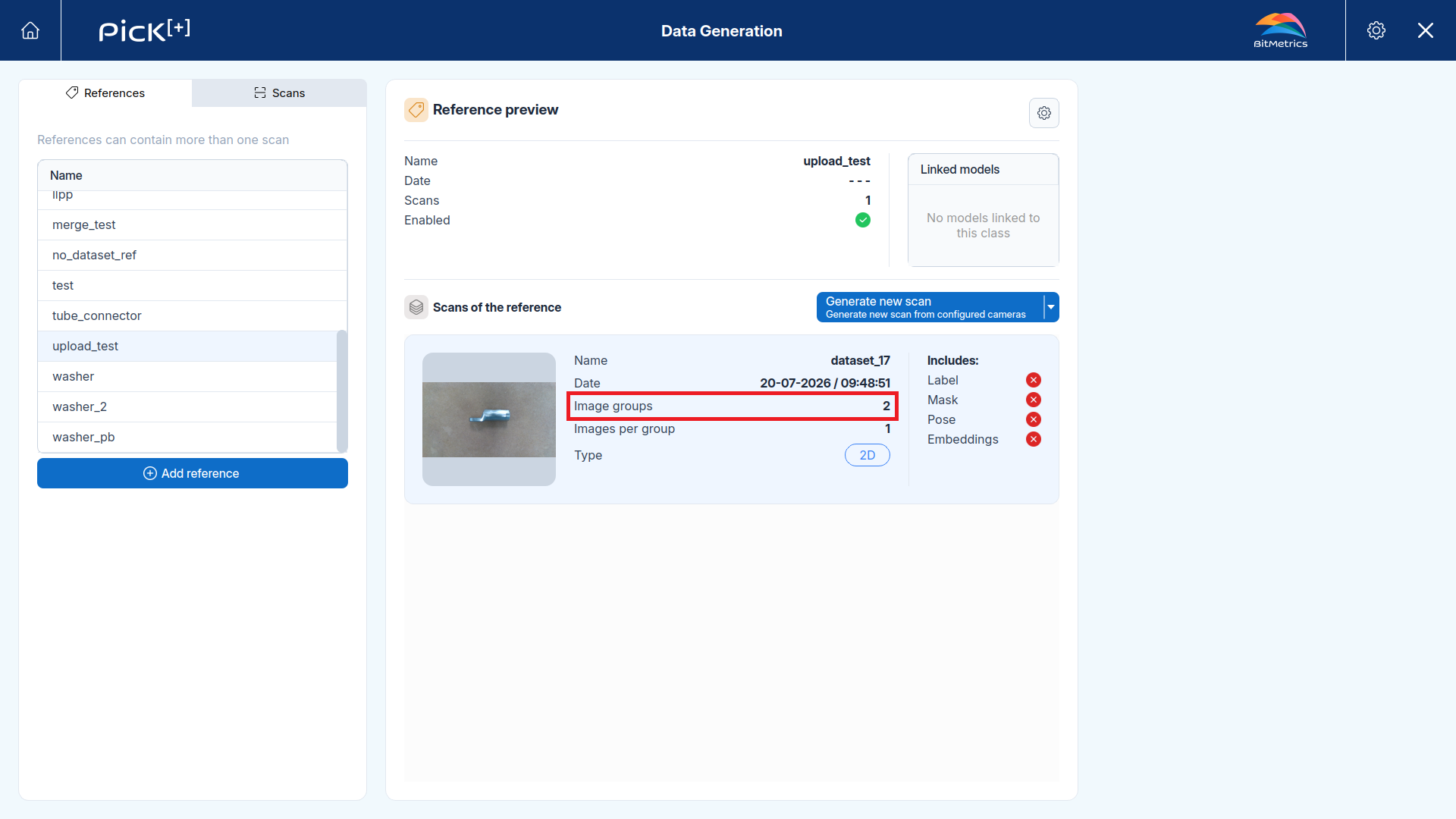
Import a folder of 2D images to include as the new reference's dataset.
In this example, a folder with two images, one for each of two faces of the piece, was uploaded. This created a scan with two image groups, one per uploaded image.
Reference Settings
Click the button at the top of the preview to open the reference's settings.
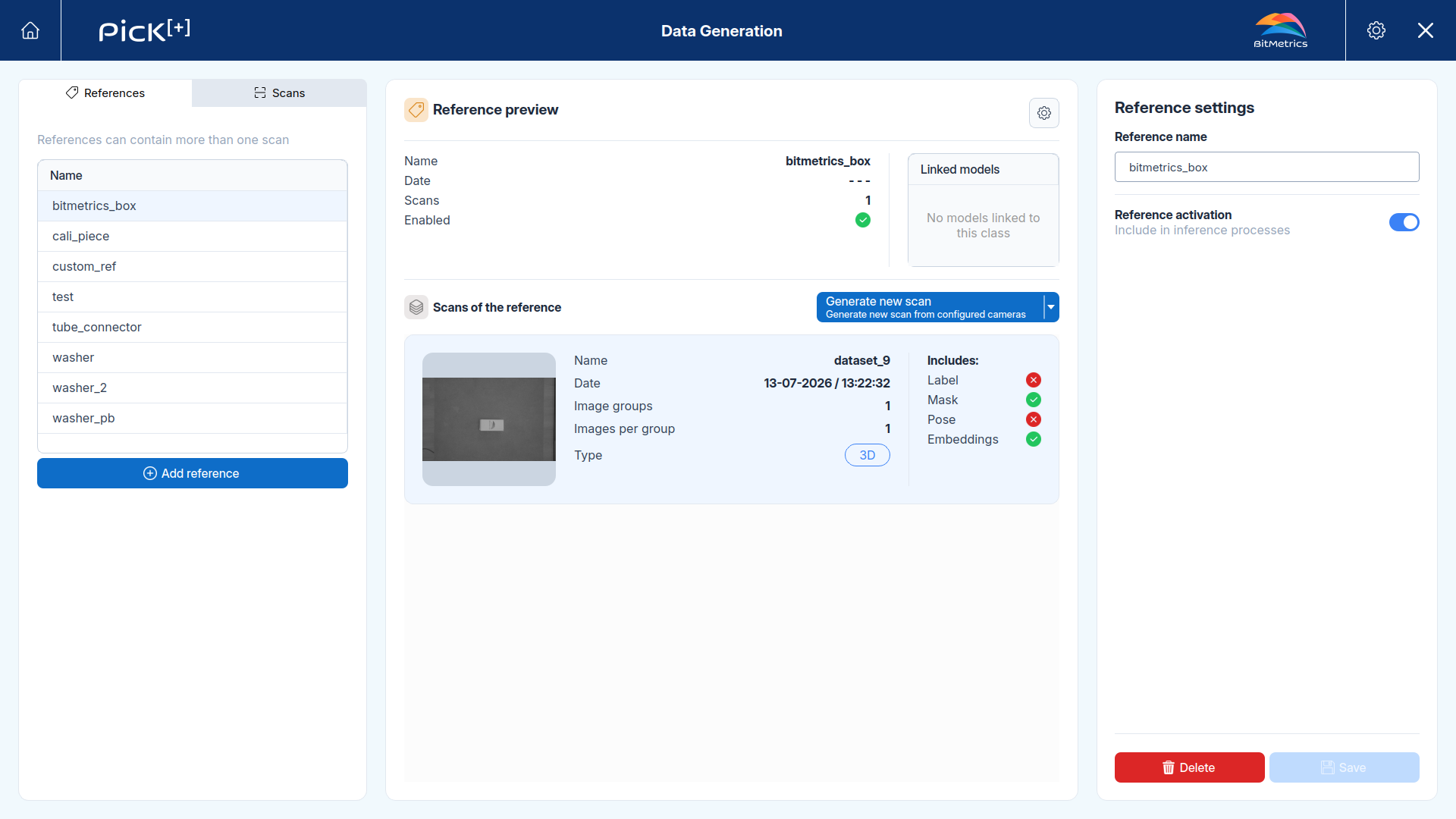
- Reference name: Renames the reference
- Reference activation: Enables or disables the reference for Similarity-Based Picking applications. Turning it ON only takes effect if at least one of the reference's scans has both its mask and embeddings annotations generated, since those are the annotations the matching model relies on.
Click Save to apply your changes, or Delete to permanently remove the reference.
References in execution
A reference is not only a configuration item. Once an application is running, the robot program and the PLC can both read which reference was picked and restrict a trigger to specific references.
As with bins, robots address a reference by name and a PLC by numeric ID.
Reading which reference was picked
A Similarity-Based Picking application reports the match together with the pick pose, so the robot can route each part according to what it turned out to be.
| Integration | Where the match arrives |
|---|---|
| Universal Robots and ABB | PP_CATEGORY, updated on every output request with the reference name |
| PLC | OUTPUT_CATEGORY_ID, which holds the reference ID, or -1 when there is no result |
Filtering by reference at trigger time
A trigger can also be restricted to certain references, so Pick[+] ignores everything else in the bin. This is how one application empties a mixed container part type by part type.
| Integration | How to filter |
|---|---|
| Universal Robots | The categories parameter of pick_plus_config_trigger, listing reference names. Set categories_subtract to False to search only the listed ones, or to True to search everything except them |
| ABB | The categories{*} parameter of PP_ConfigTrigger, listing reference names. Set categories_subtract to FALSE to search only the listed ones, or to TRUE to search everything except them |
| PLC | The TRIGGER_CATEGORY_ID registers, listing reference IDs. The TRIGGER_CATEGORY_ID_SUBTRACT flag in the same table inverts the selection |