Execution Screen
The Execution Screen is where you follow the active application while it runs in Execution Mode. On every trigger it shows the image the camera captured, the objects Pick[+] detected in it and how many there are.
Nothing on this screen changes how the application is configured. Settings stay locked while Execution Mode is active, and to change them you switch back to Configuration Mode.
Opening the Execution Screen
The Execution Screen is only available while Pick[+] is in Execution Mode with an active application:
- On the Home Screen, click the icon in the Execution Panel, select the Active Application and set the Mode to Execution. See Changing Application Mode.
- Click Access on the Active Application card.
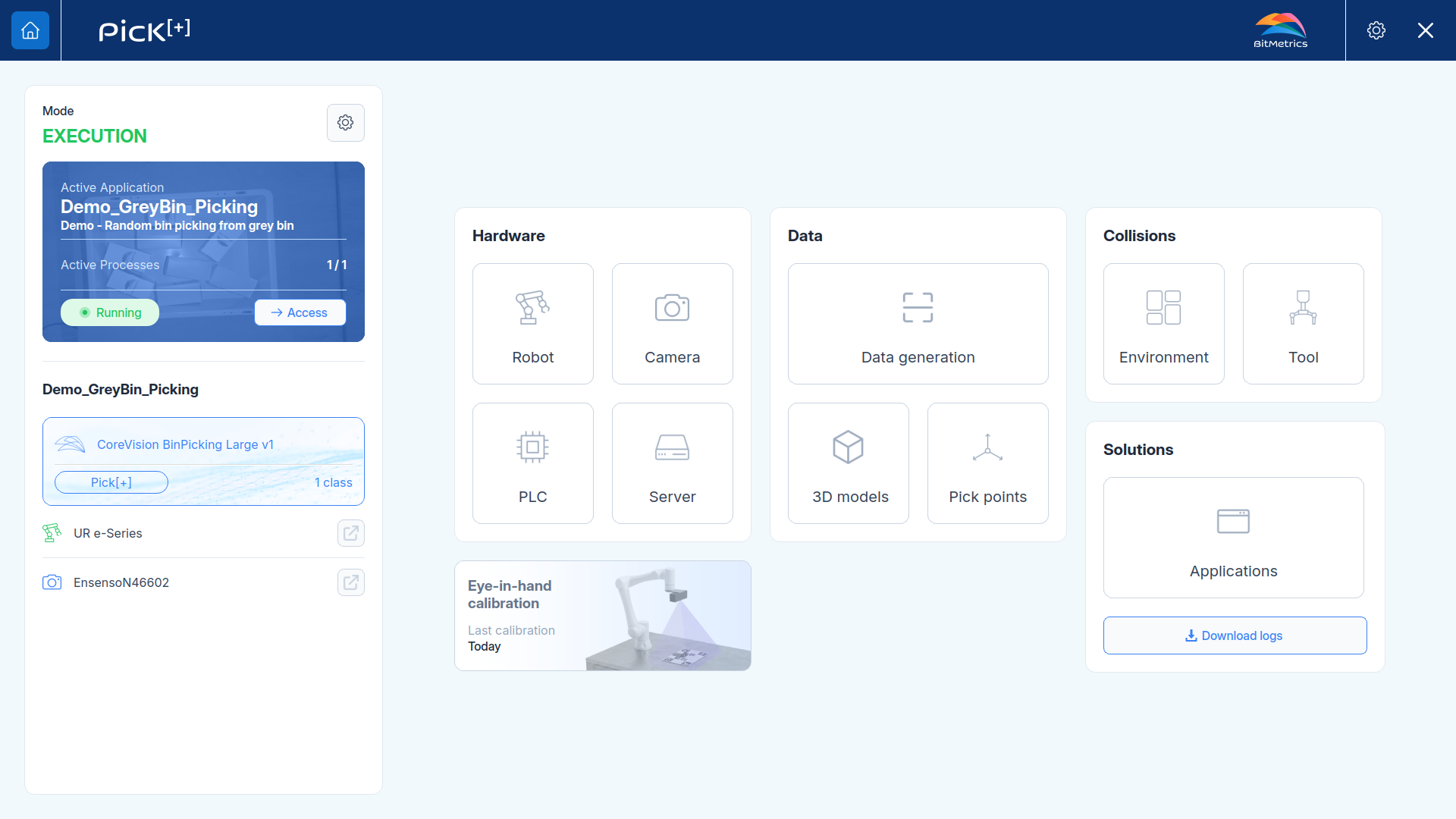
To go back, click in the top bar. Leaving the Execution Screen does not stop the application: it keeps running and processing triggers, and the card on the Home Screen keeps showing Running.
The screen refreshes on every trigger
Pick[+] does not capture images on its own. The image and the counters refresh each time the application controller, the robot program or the PLC, sends a trigger. Until the first trigger of the cycle arrives, nothing changes on screen.
Screen Layout
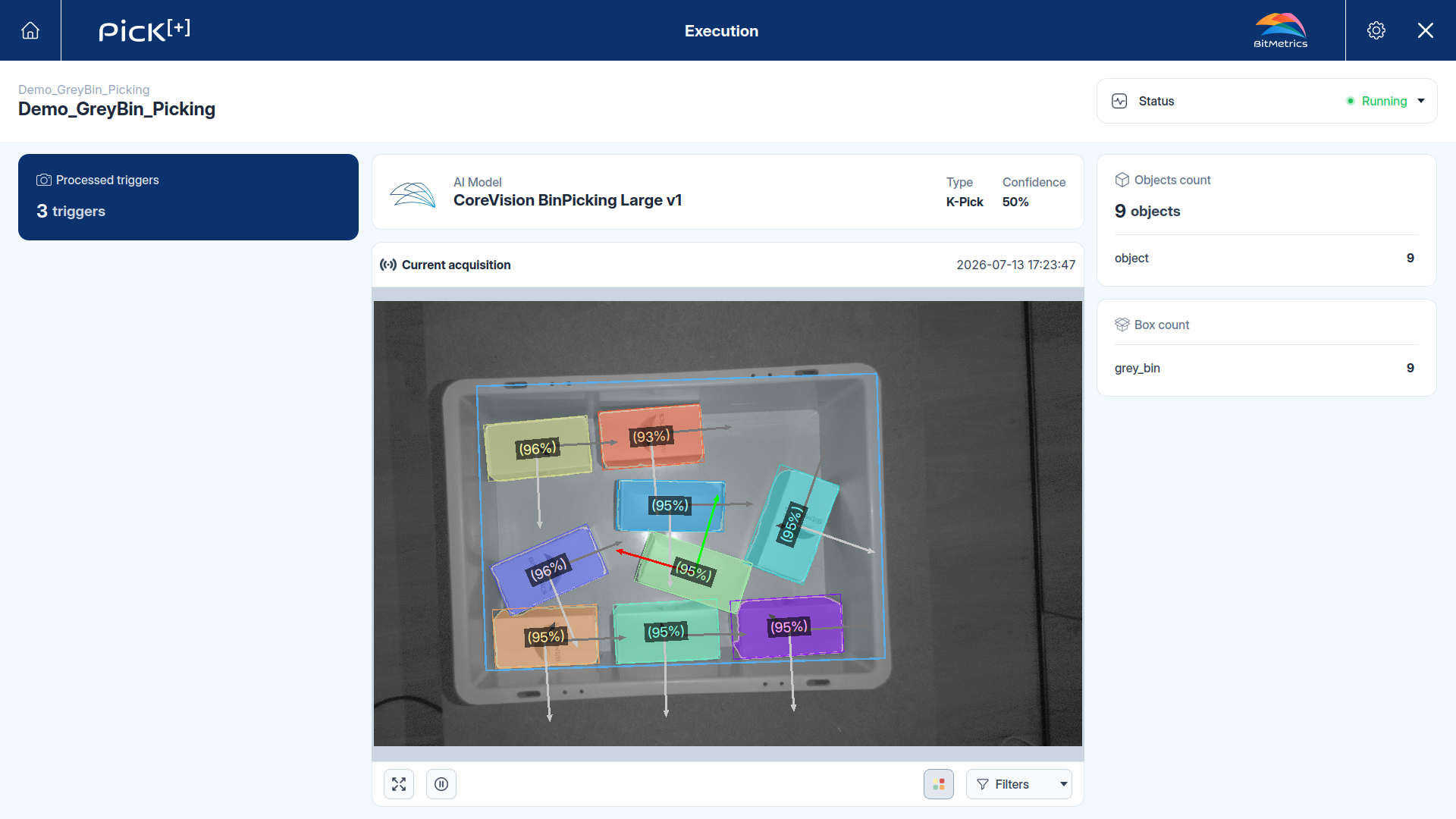
Hover over or tap an area of the screen to see what it shows.
Status
A green Running means the application is ready to process triggers, the execution service of the Pick[+] server is running, and Pick[+] is connected to the hardware of the application. The robot program waits for this state with pick_plus_process_status before its first trigger.
AI Model
The AI Model card shows the model and strategy selected in the AI Strategy step, and the confidence threshold of the application. Detections that score below it are filtered out and never become pick candidates.
Objects Count and Box Count
Objects count gives the total number of objects detected in the current acquisition and breaks it down per class. A CoreVision model segments without classifying, so every detection falls under a generic object class, as in the screenshot above. With Similarity-Based Picking, each object is listed under the reference it was identified as.
Box count lists each bin of the scene and how many of the detected objects lie inside it. It is the same breakdown a PLC reads in the COUNT registers.
Current Acquisition
The Current acquisition panel shows the last image captured by the camera, with the date and time of the capture in its top right corner. Pick[+] draws on top of it what it found:
- Colored mask: the area the AI model segmented as each object, colored either per object or per reference.
- Label: the confidence score of the detection, or the class the object was identified as.
- Axes: the orientation of the pick point computed on each object.
- Blue outline: the bin that delimits the pick region. Objects outside it are not detected.
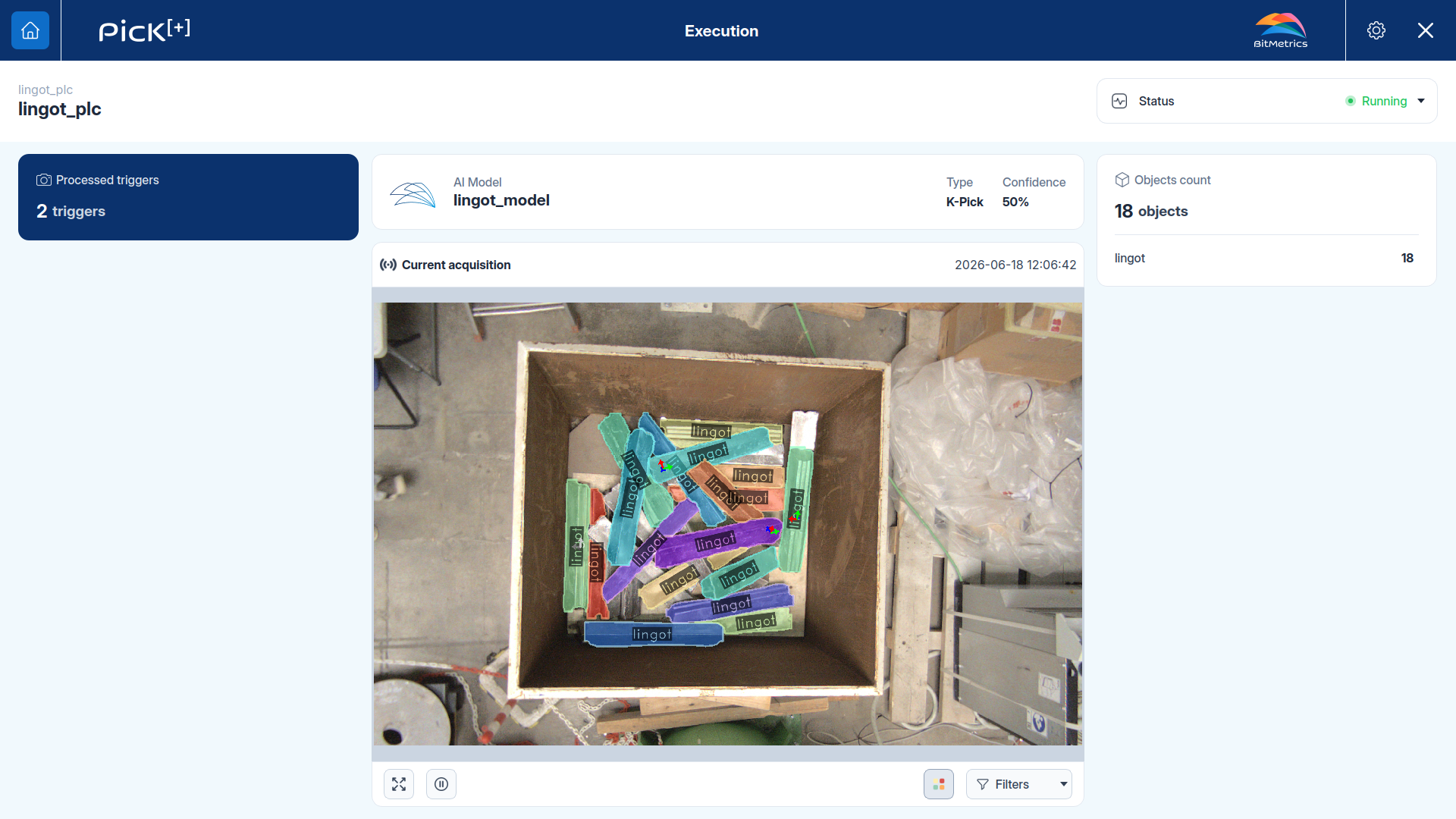
In the screenshot above, the labels show the confidence of each detection. In the one below, they show the class, and Objects count lists the 18 objects under that class:
Viewer Controls
The buttons under the image change how it is displayed. None of them affect the detection or the pick sent to the robot.
| Button | Action |
|---|---|
| Shows the image in full screen | |
| Pauses the live view on the current acquisition | |
| Colors (four colored dots) | Switch between per-object or per-reference coloring |
| Filters | Chooses which overlays are drawn on the image |
Troubleshooting with the Execution Screen
The Execution Screen is the quickest way to tell at which step a cycle fails, because it shows what Pick[+] saw before anything reaches the robot.
| What you see | What to check |
|---|---|
| Objects in the bin have no mask | The AI model is not finding them. Lower the confidence threshold and check the image quality of the camera profile |
| The blue outline does not match the real container, or objects near its walls have no mask | The bin is misplaced in the scene, or the wrong bin is selected at trigger time. Verify the scene against the pointcloud and check the bin selection of the robot program or the PLC |
| Objects have a mask, but the robot gets no pick pose | Detection works, so the problem is in the pick point. Hover the mouse over the object to check its results. See Segmentation works, but no pick point is generated |
ATTENTION
The objects to pick must stay within the camera's working distance during the whole cycle. If the camera sits closer than its minimum distance, the point cloud comes out incomplete and Pick[+] finds no valid pick points.