Assets
An asset is a 3D model of a real obstacle in the cell. Pick[+] uses it to keep the tool from crashing into fixed elements during the pick, such as a table, a support structure, a pallet, the robot base or a fixture. Assets exist purely for collision handling. When an asset is placed in a scene, Pick[+] plans trajectories that never intersect it.
They are imported from a CAD file so its real shape is respected during collision checking.
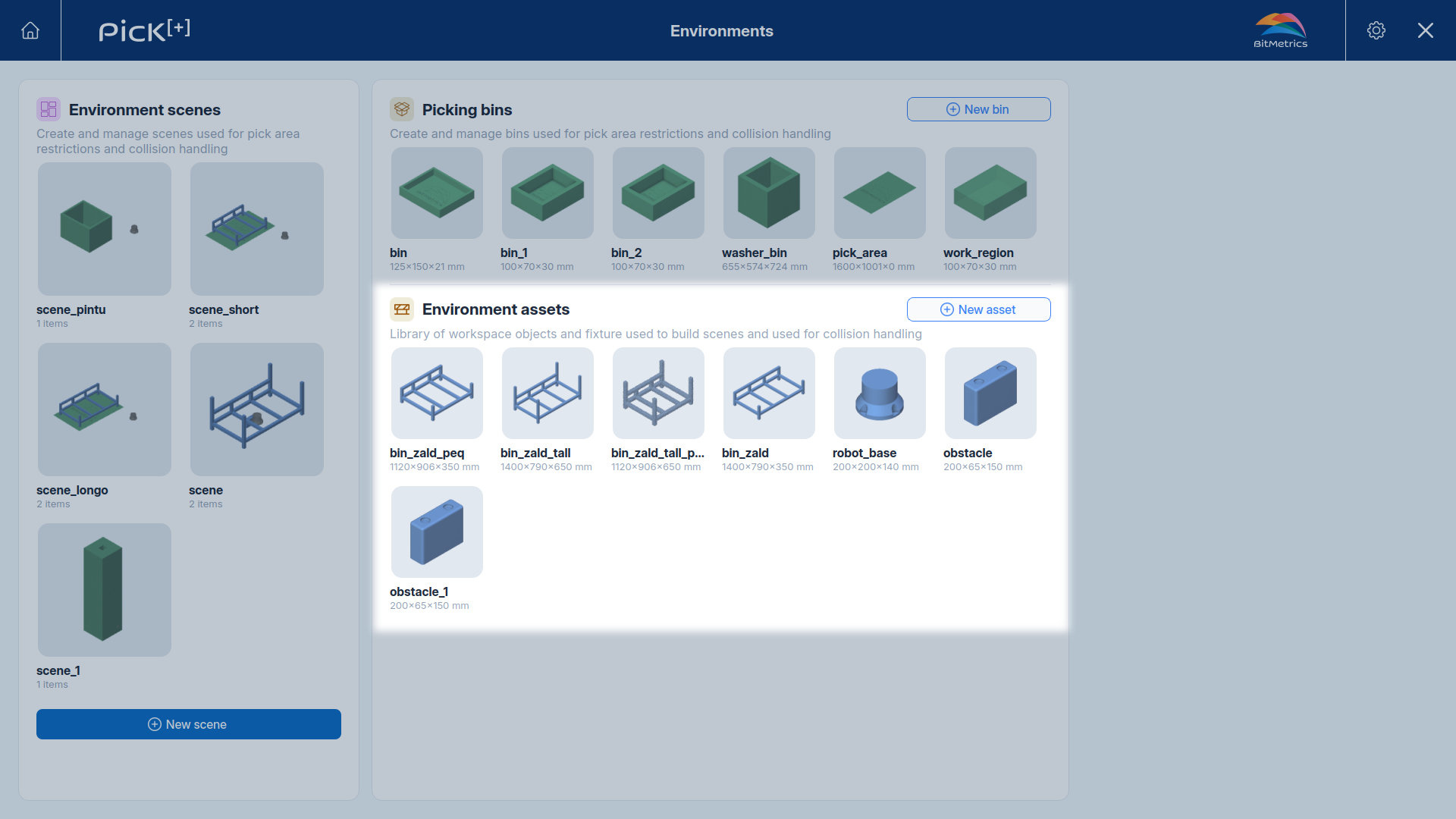
Assets live in the reusable library on the Environments screen. Once created, an asset can be added to any scene.
Creating an asset
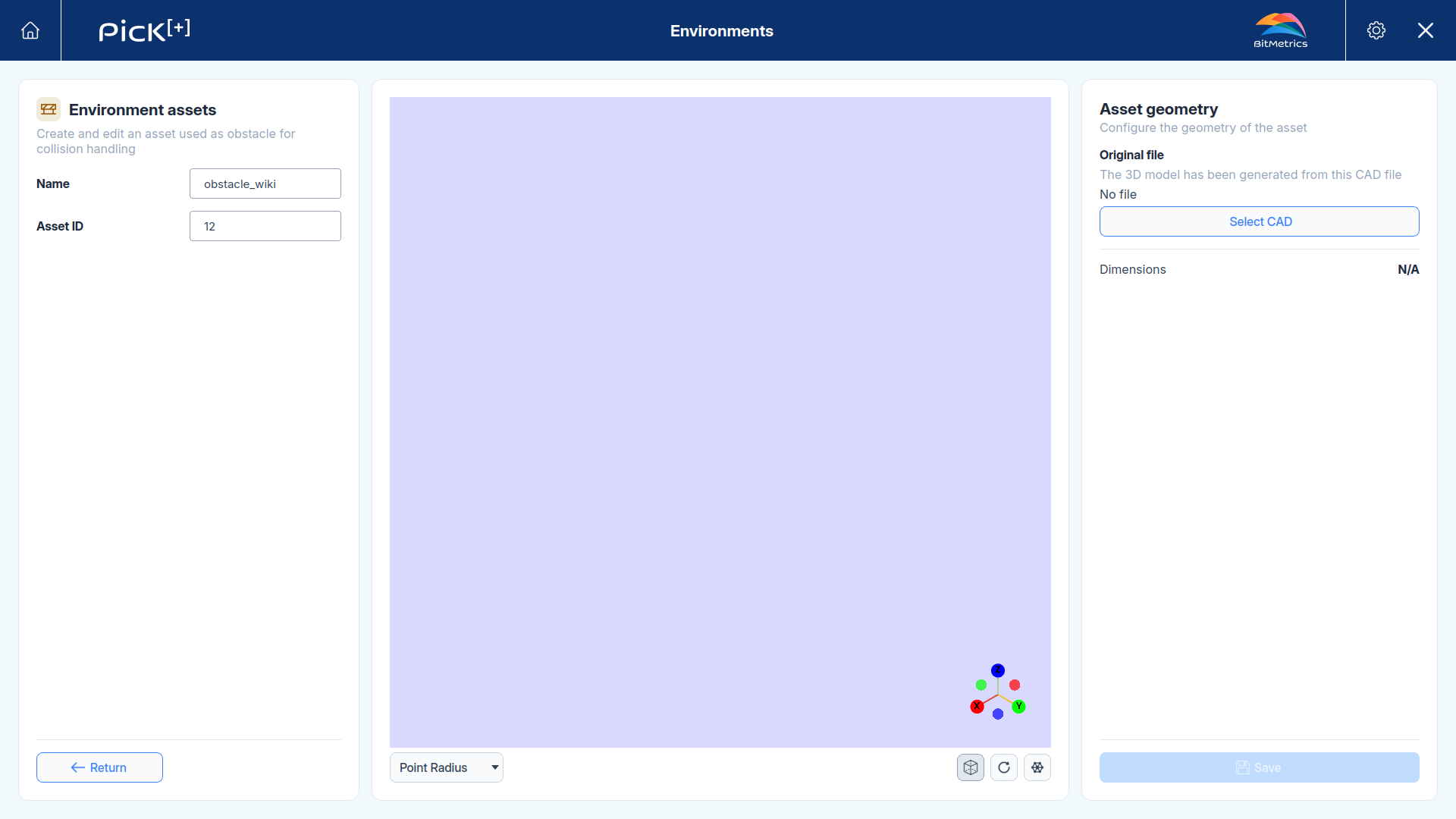
From the Environments screen, click New asset in the Environment assets panel. The asset configuration screen opens with an empty 3D viewer until a CAD file is loaded.
Identification
- Name: a descriptive label for the asset.
- Asset ID: the numeric identifier for the asset.
Importing the CAD model
Under Asset geometry, click Select CAD to load the 3D model. In the dialog:
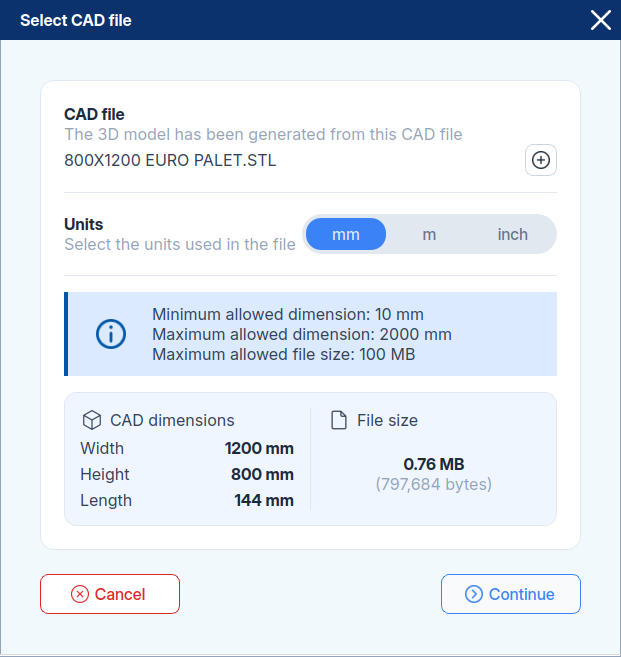
- CAD file: choose the model file. The supported formats are
.STLand.OBJ. - Units: select the units used in the file,
mm,morinch, so the model is scaled correctly.
Once a file is selected, Pick[+] reports the detected CAD dimensions and file size so you can confirm the model is correct before continuing.
Import limits
The model must respect the allowed limits shown in the dialog:
- Minimum dimension: 10 mm
- Maximum dimension: 2000 mm
- Maximum file size: 100 MB
Click Continue to generate the 3D model from the CAD file. The asset now renders in the viewer and its Dimensions are displayed in the geometry panel.
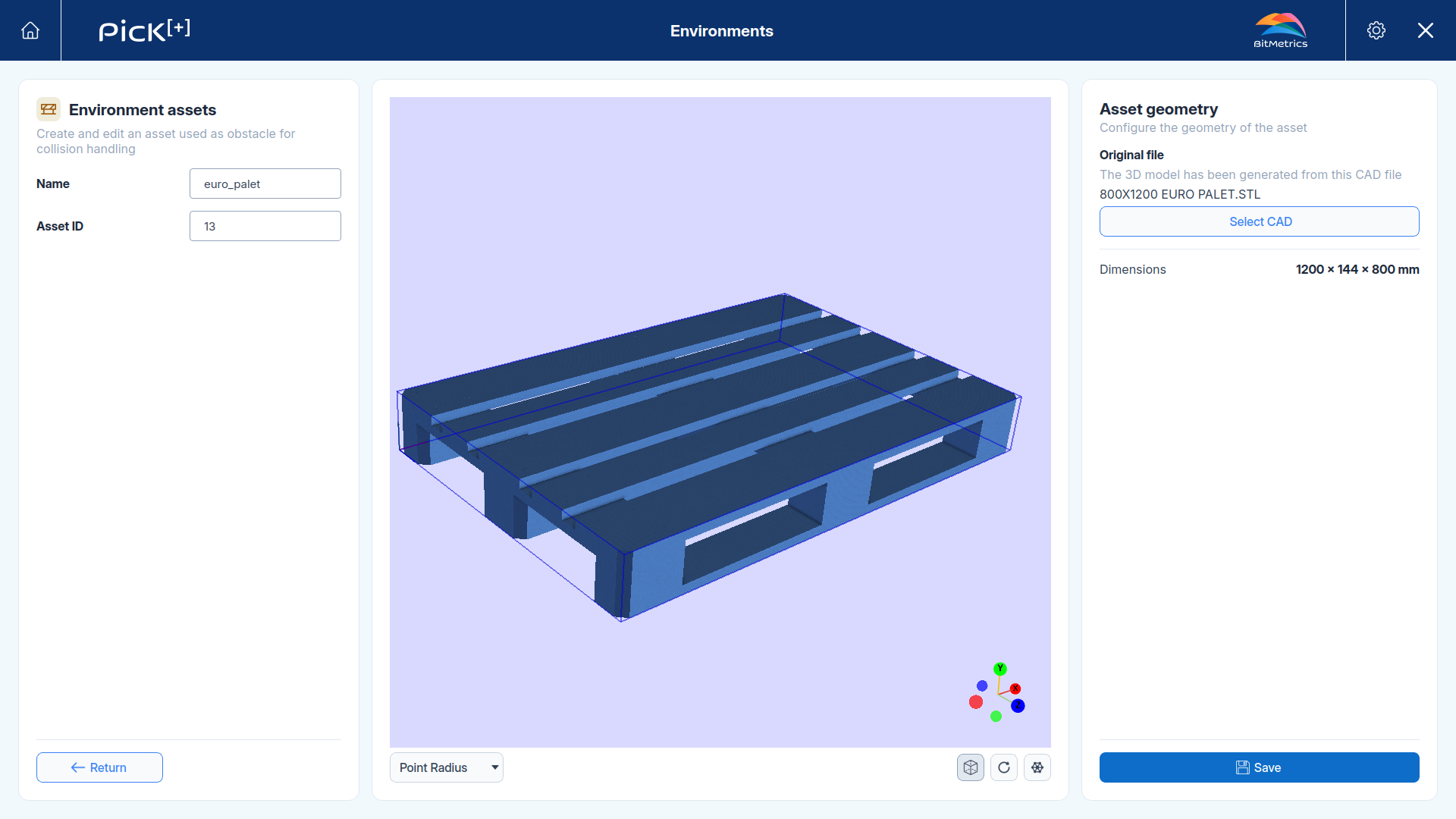
Click Save to add the asset to the library.