Scenes
A scene is the representation of the complete work area of the robotic cell: every structure, container and object Pick[+] must be aware of, each placed at its real position. The active scene is what Pick[+] uses to compute collisions and to filter detections and pick points to the delimited regions.
A scene is assembled from the reusable library: the bins that delimit the pick regions and the assets that act as obstacles. This page covers how to compose a scene and position each element.
Creating a scene
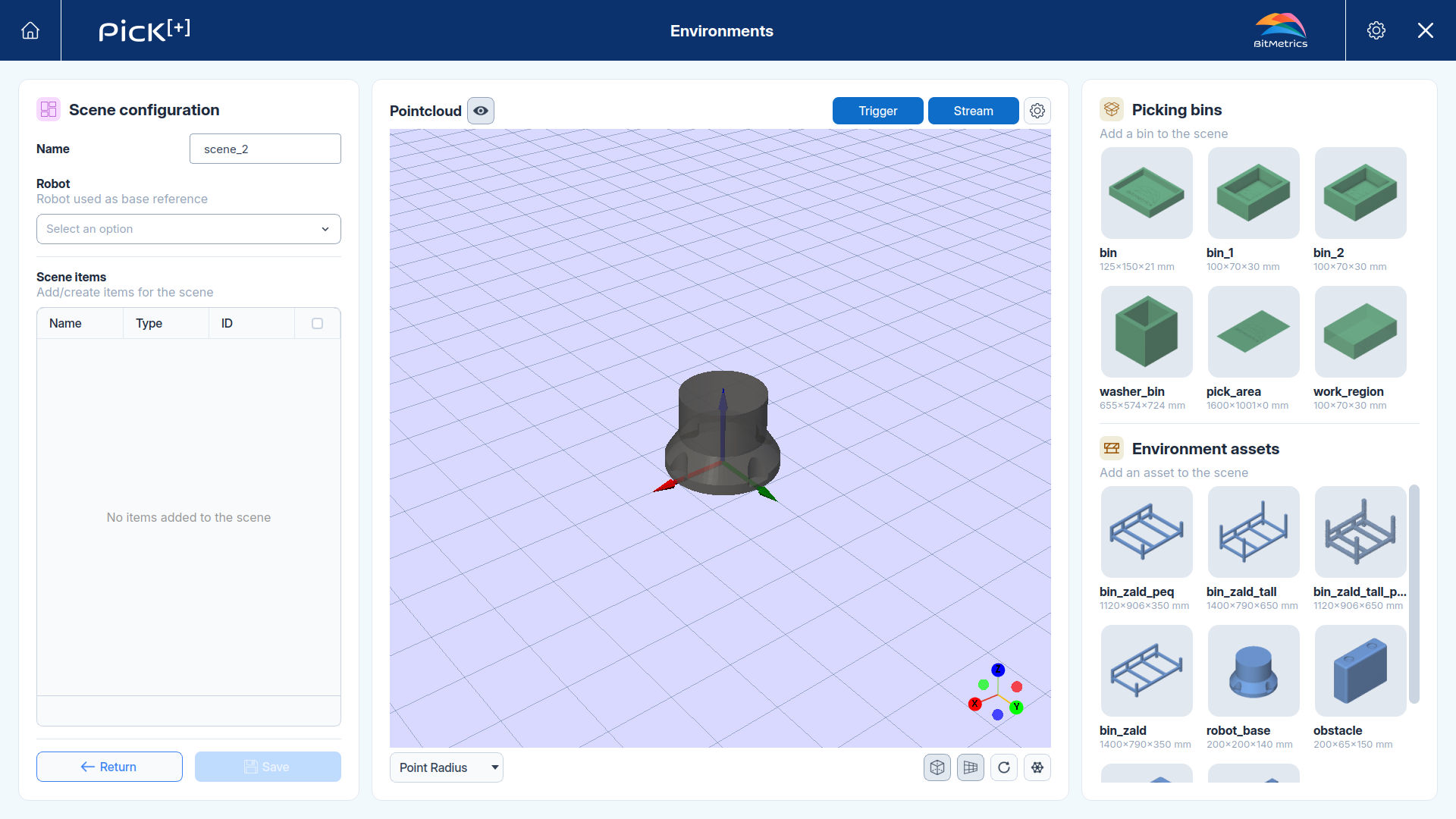
From the Environments screen, click New scene in the Environment scenes panel. The scene configuration screen opens with the scene contents on the left, a 3D viewer in the center, and the library to draw from on the right.
Identification and base reference
- Name: a descriptive label for the scene.
- Robot: the robot used as the base reference for the scene. All item positions are defined relative to this robot's base, so it must match the robot the scene is built for.
Adding bins and assets
The right panel lists the available Picking bins and Environment assets. Drag and drop or double click an item to add it to the scene, it will appear in the table on the left, listing its Name, Type (Bin or Asset) and ID.
Positioning an item
Select an item from the scen to open its configuration on the right, where you can place it at its real location relative to the robot base.
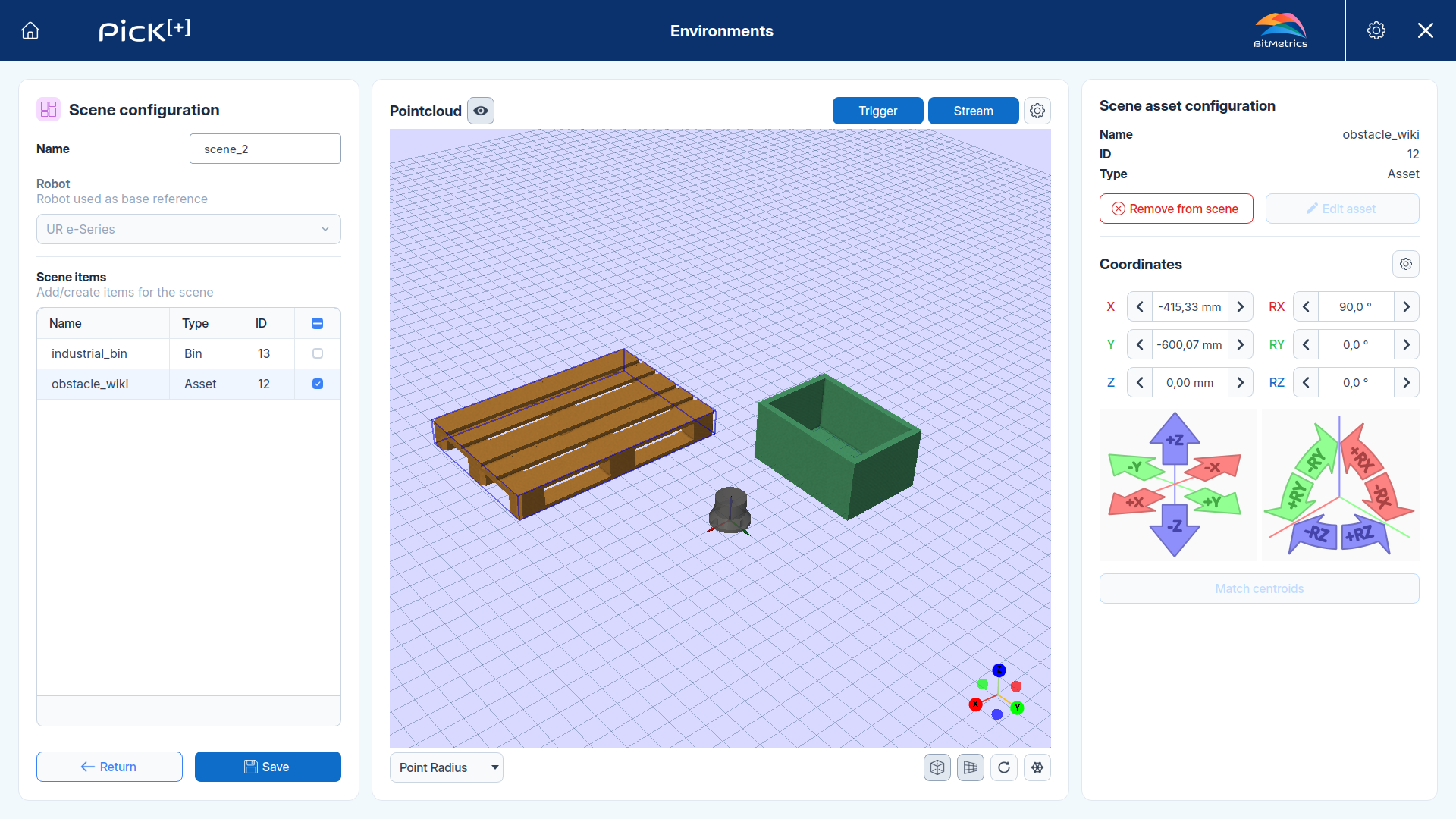
- Coordinates: set the position (X, Y, Z) and orientation (RX, RY, RZ) of the item. Use the transform widget to precisely position the items with move and rotation controls.
- Match centroids: aligns two item's centroids to speed up rough placement before fine-tuning the coordinates.
WARNING
Positions are relative to the selected robot base. Make sure the robot base frame and the item coordinates are correct
Verifying against the pointcloud
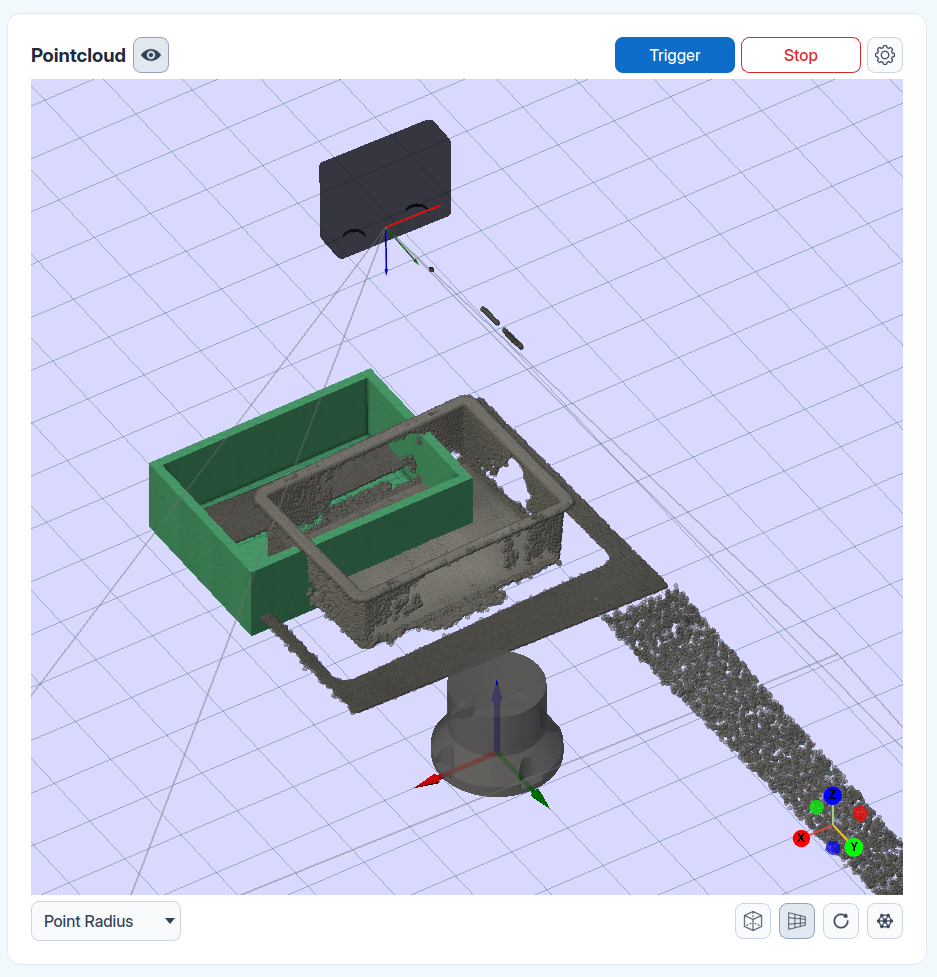
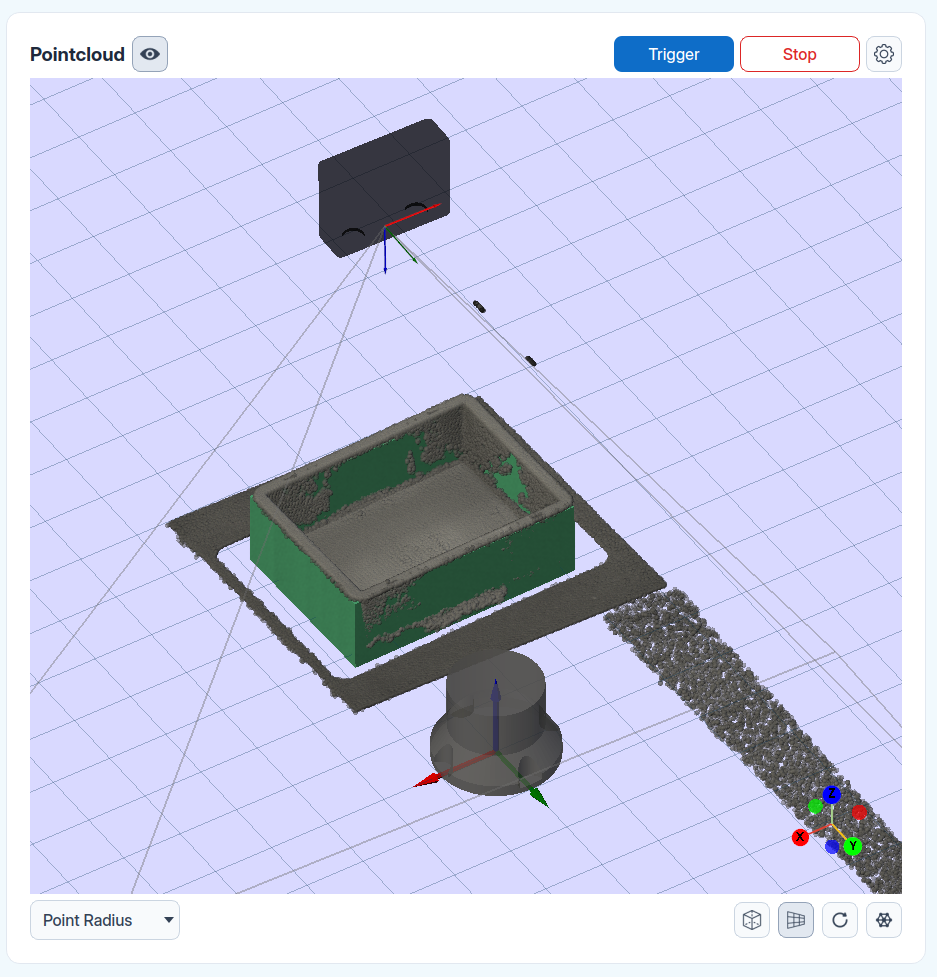
The center viewer can overlay the live camera pointcloud on top of the scene, so you can check that the bins and assets line up with the real workspace before saving:
- Trigger: capture a single pointcloud from the camera.
- Stream: show a continuous live pointcloud.
Use the visibility toggle next to Pointcloud to show or hide the overlay. When all the scene elements line up with the captured geometry, click Save.