Segmentation works, but no pick point is generated
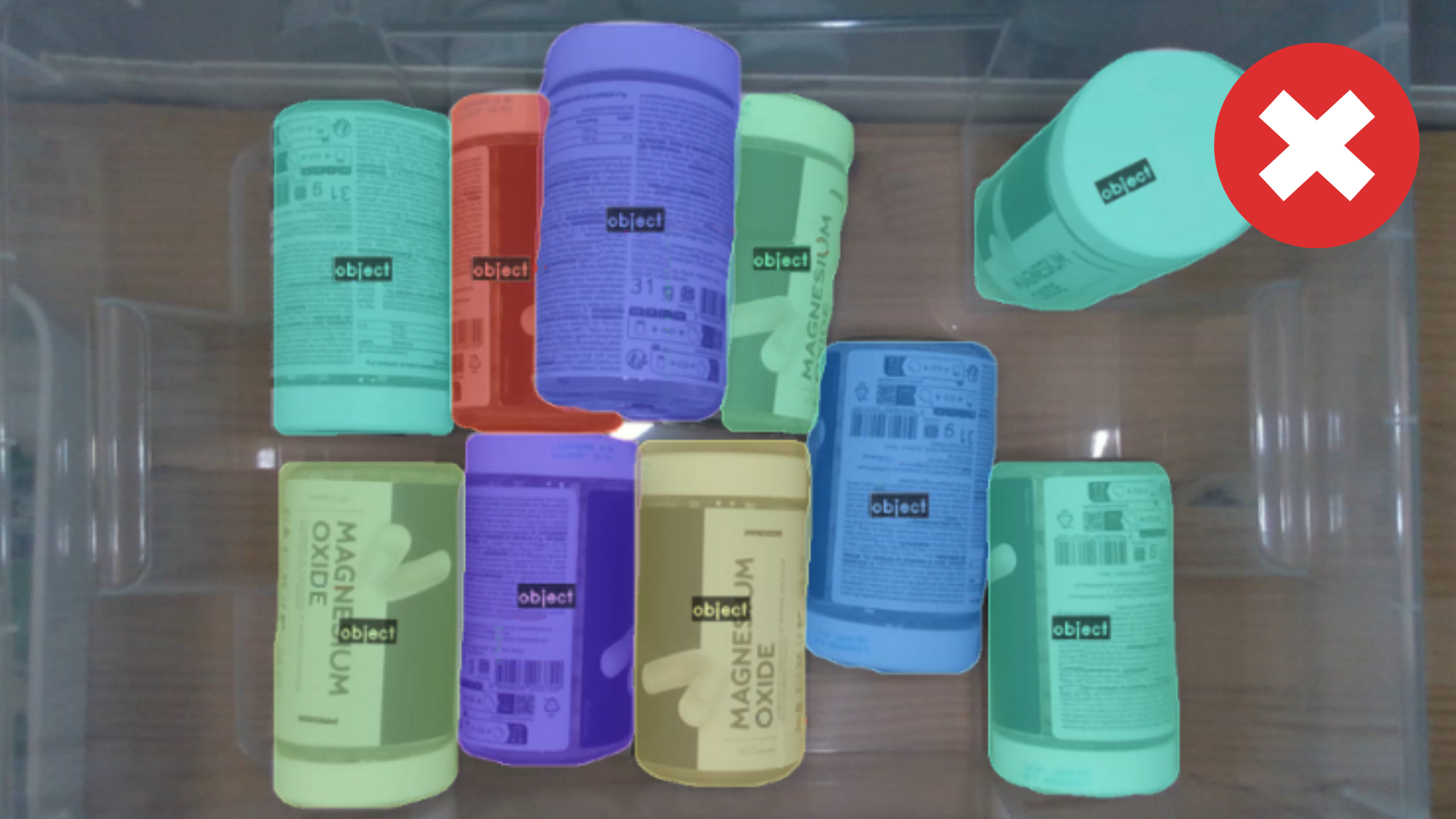
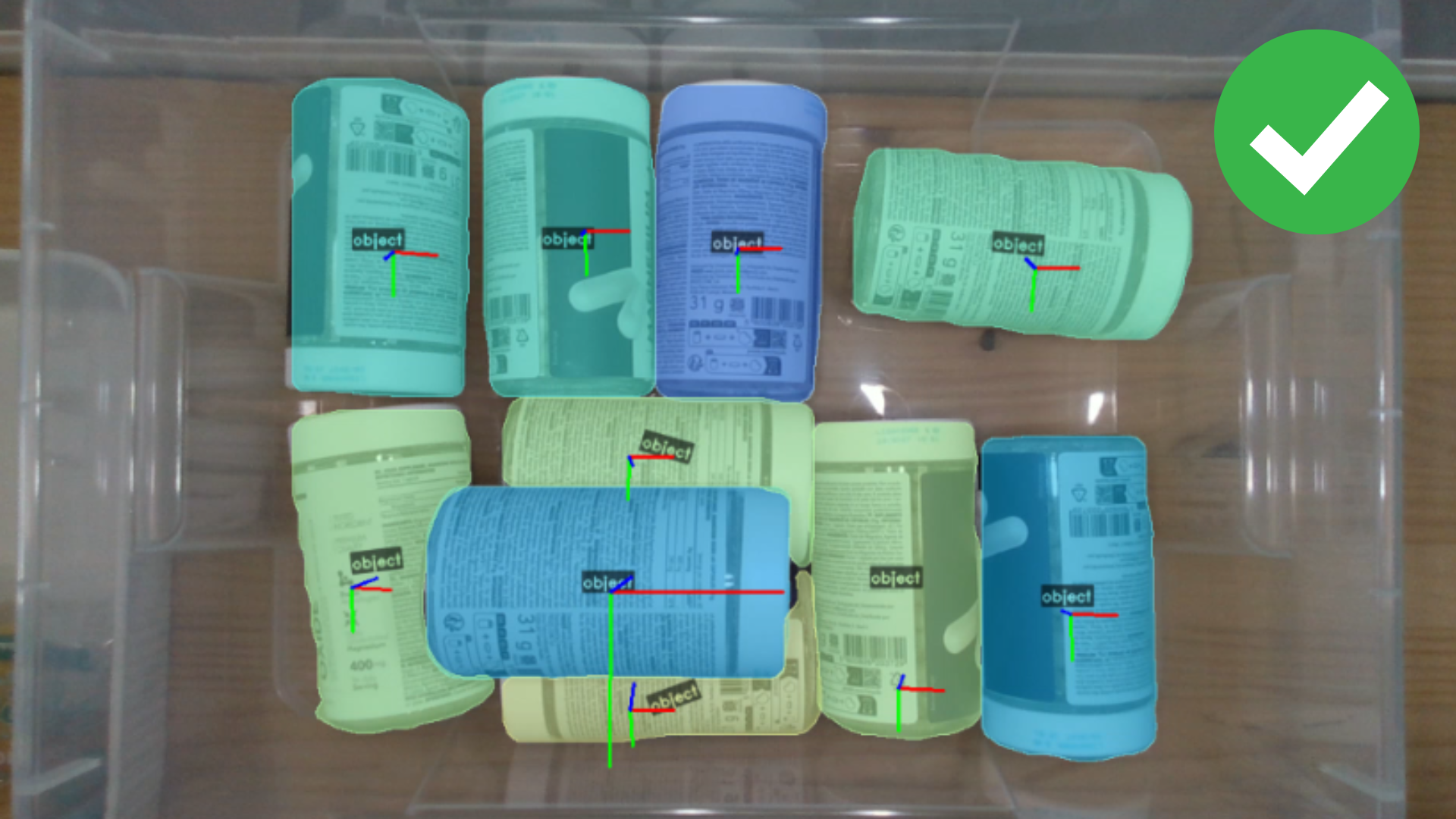
If objects are correctly segmented but no pick point is selected, check the following:
Robot Constraints
- Pick point out of robot reach: The calculated pick point may be outside the robot's workspace.
- Pick angle threshold is too strict: Increase the angle threshold in the Pick[+] Template node to permit steeper approaches.
![Pick[+] Template](/1.x/assets/1.x/installation_assets/urcap_assets/template_node.png)
Hardware Configuration
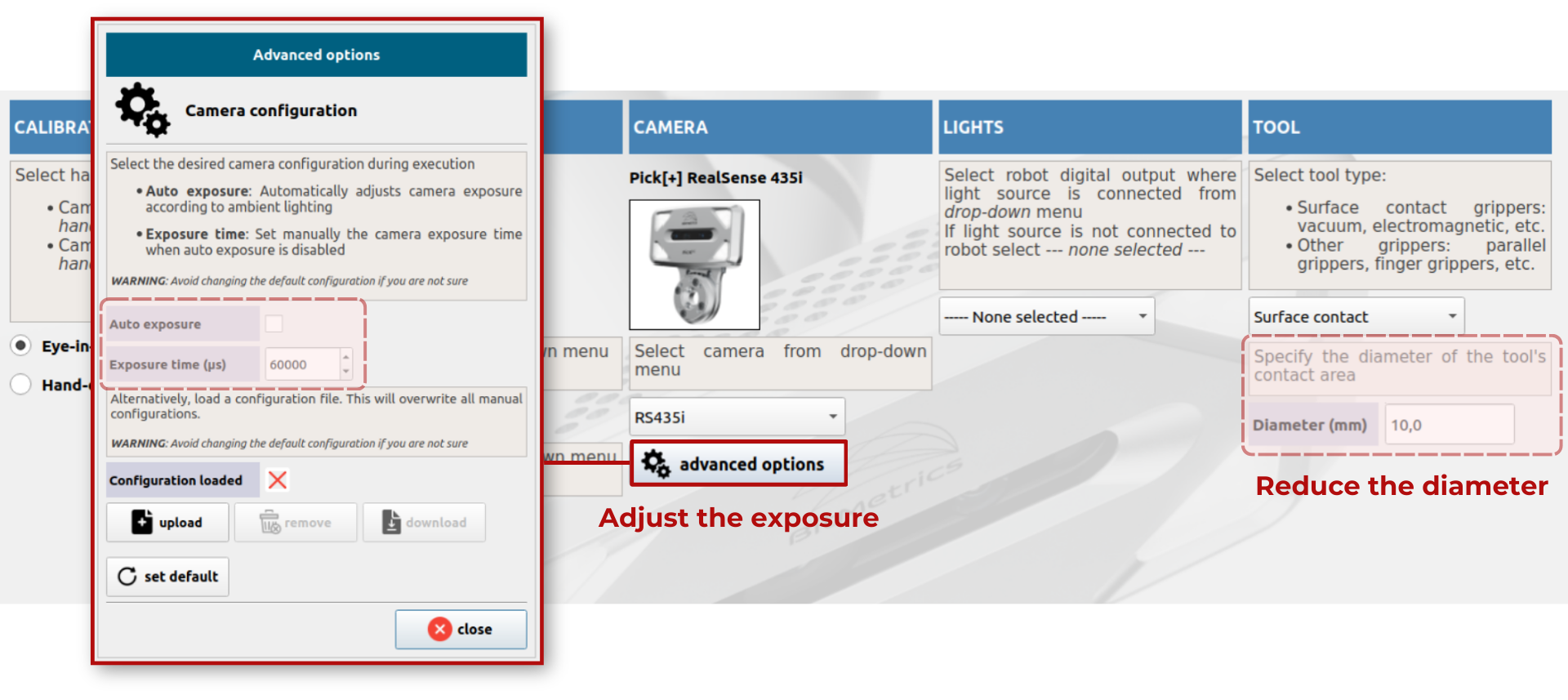
- Vacuum cup is too large: Consider reducing suction cup size if it's not fitting within detected object areas in System Settings.
- Configure exposure: In the camera advanced options, increase or decrease the exposure of the camera until the image obtained is clear. Or try using the auto exposure mode.
Camera Position
- Camera distance too short: Increase the distance between the camera and the scene to at least 30 cm (when using a RealSense camera).
Environment Setup
-
Pick box definition is too tight or inaccurate: Make sure the Pick Box of the Active Environment fully contains the object and leaves margin for placement error.
-
Tool collision box too large: Reduce the size of the Tool Collision Box if it's blocking valid picking positions.
-
Direct sunlight: Avoid direct sunlight or bright reflections onto the work area. Sunlight floods depth sensors and creates glare, which degrades depth/point-cloud quality.
Pick Point Generation by Gripper Type
Vacuum gripper (suction cup)
When using a vacuum gripper or similar, the system supports U-Pick or K-Pick with "No alignment" selected in the Application Editor. In these automatic pick modes, the object must have a flat surface with an area equal to or larger than the suction cup size defined in the system for a viable pick point to be detected.
Finger gripper
When using a finger gripper, each K-Pick object must have:
- A 3D model generated from scanning.
- A pick point defined on the model.
- The "Geometry-based" option selected under 3D alignment in the Application Editor.
Verify the 3D model quality
Review the generated 3D model after scanning. If the shape appears distorted or incorrect, redo the scan with:
- A non-black background with sufficient contrast against the object.
- Images that are neither too dark nor too bright — adjust the camera exposure in Camera Advanced Options if needed.
For the pick point to appear during execution, the 3D camera must obtain a good quality point cloud that allows the system to correctly align the real object with the scanned 3D model.