3D models
In order to deal with object alignment and thus allow for a precise place position of the picked object we need the 2.5 / 3D model of the object. To align, we offer two possibilities:
- Workwith the 2.5D models or point cloud that can be generated from the scanned views.
- Workwith a CAD model (3D) provided by the user.
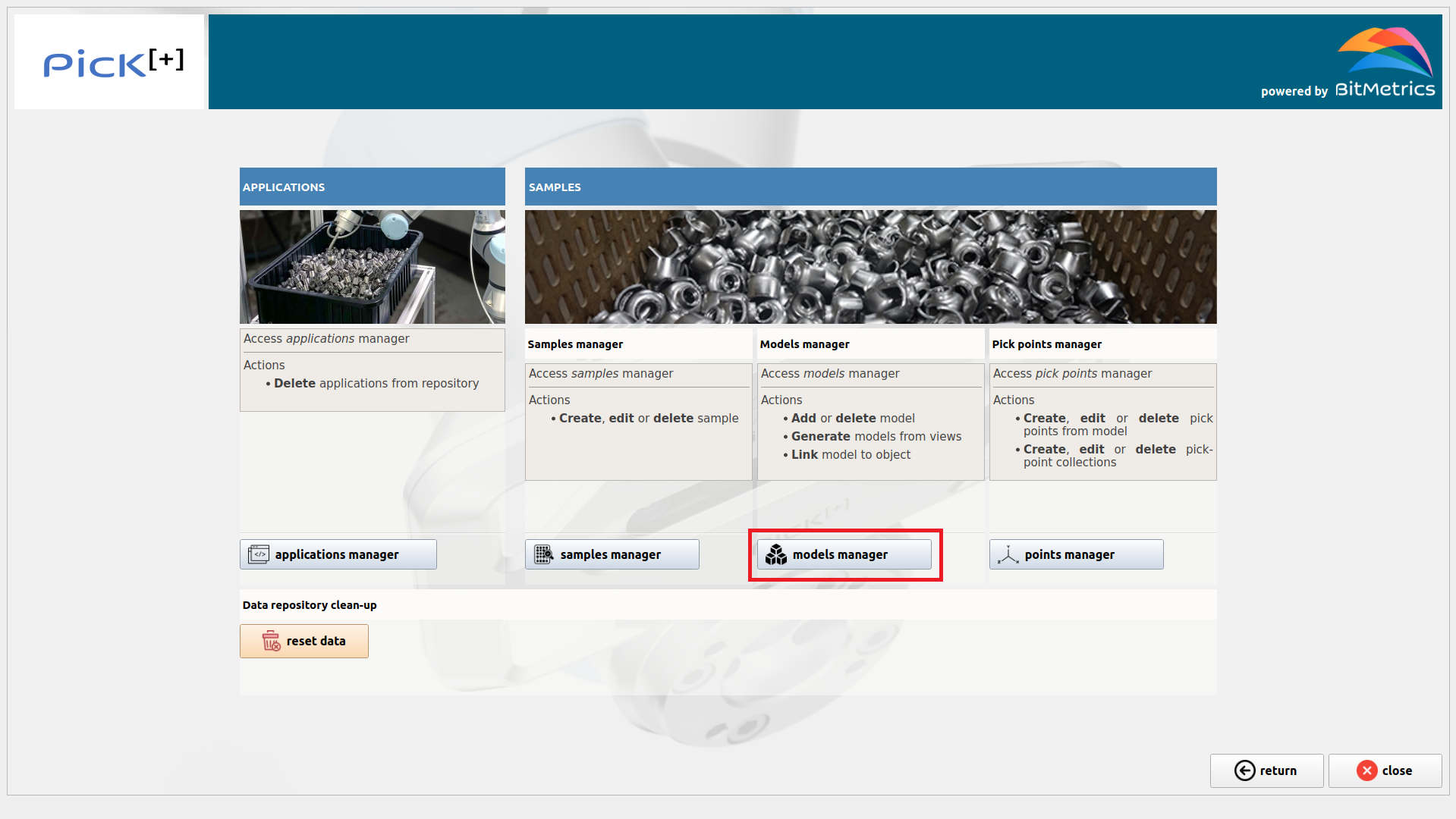
To add the object model, click Models Manager inside the Data Manager
Generate model from scan
To generate a model when no 3D CAD file is available, Pick[+] can build a 2.5D mesh directly from your scanned views.
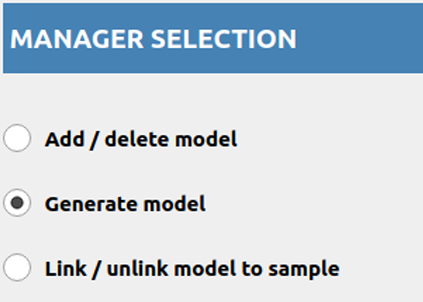
Simply select the Generate model option under Manager selection to convert your sample's point-cloud views into a working 2.5D object model.
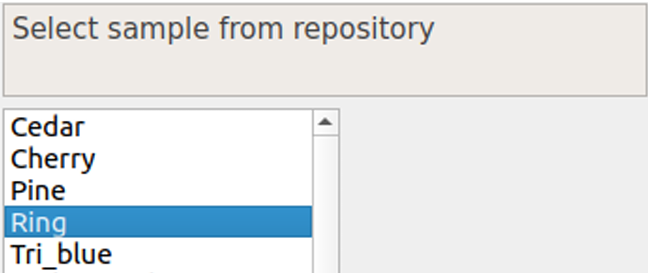
Select sample from the list:
And click Generate submodels
A 2.5D view model will be generated and automatically linked to the selected sample.
ATTENTION
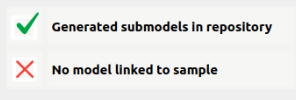 A warning may pop up saying "No model linked to sample". This only applies to a user-uploaded CAD model, your 2.5D model is already linked automatically. If you're not using a CAD file, you can safely ignore this message. Check here for more information.
Add / delete a CAD model
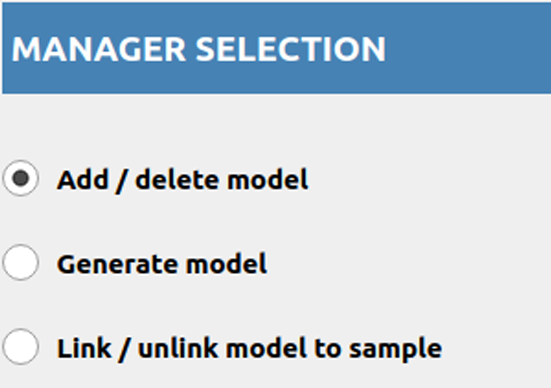
To add / delete a 3D model select the button Add / delete model under the heading Manager selection.
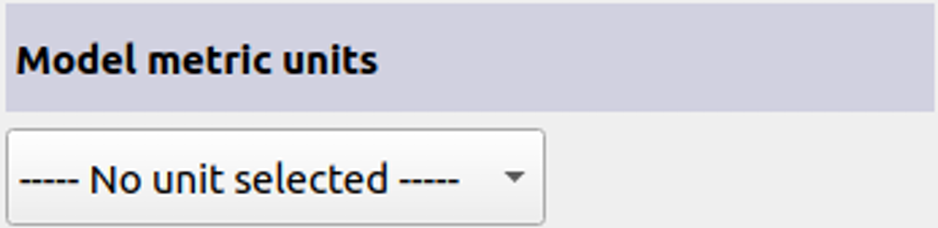
To upload a new 3D model to the data repository, first select the units with which the model to be uploaded has been generated.
And then click Upload
To delete model from repository select it from the list of available models and click Delete
Link / unlink CAD 3D model to sample
3D models are not linked by default to a particular sample / object. In fact, the same 3D model can be potentially linked to more than one sample. To indicate this relationship between the model and a particular sample we need to explicitly link the model to the sample.
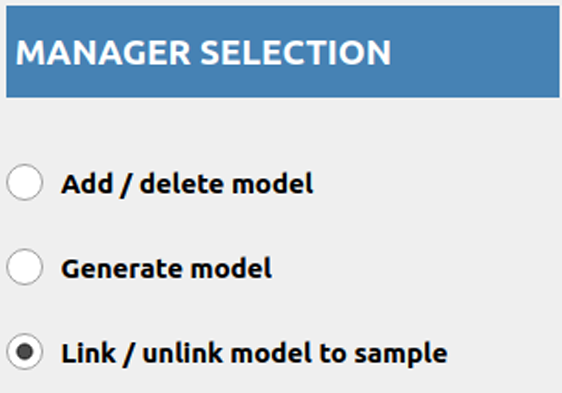
To link / unlink 3D model to / from sample select radio button Link / unlink model to sample under the heading Manager selection.
First of all, select sample from list
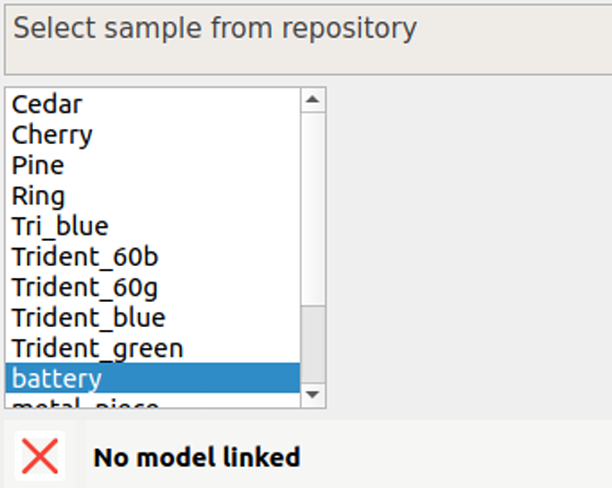
If the selected sample is not linked to any 3D model we will be shown a list with all the models available.
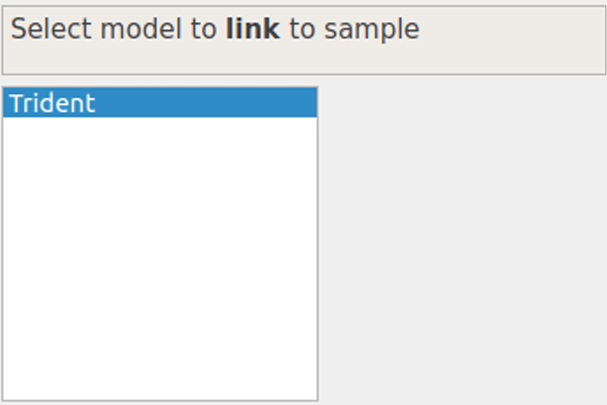
Select desired model and click Link to link the selected model to the selected sample.
If, on the other hand, the selected sample is already linked to a model, we first need to unlink it before linking it to another model. To unlink click Unlink