Universal Robots Configuration
Before using Pick[+] with a Universal Robots system, it is necessary to enable Remote Control Mode in PolyScope. This allows the robot to execute commands sent by the Pick[+] software.
Enable Remote Control
Follow these steps to enable Remote Control Mode on the UR teach pendant:
- Open Settings on the UR teach pendant by pressing the button in the top right corner.
- Select System → Remote Control
- Click Enable to activate remote control mode.
Robot Network configuration
IP configuration
For the complete IP configuration workflow including Server PC, Robot, URCap, and Pick[+] software settings, see the IP Configuration guide.
To ensure proper communication between the Universal Robots system and the Pick[+] server, the robot's network settings must be correctly configured in PolyScope.
Follow these steps to set up the network connection:
- Open Settings on the UR teach pendant by pressing the button in the top right corner.
- Navigate to System → Network
-
Configure network connection in UR Polyscope as follows:
- IP Address:
200.200.2.2 - Network Mask:
255.255.255.0 - Gateway:
200.200.2.1(Pick[+] server listens to robot on this IP)
- IP Address:
-
Click Apply to save the changes.
WARNING
If connection problem appears, verify that the Ethernet connection is properly configured on the UR controller.
- Go to Settings → Security → Services
- Enable ALL services.
- If the Ethernet is disabled, the robot will not receive commands from Pick[+], even if Remote Control Mode is enabled.
URCap IP Configuration
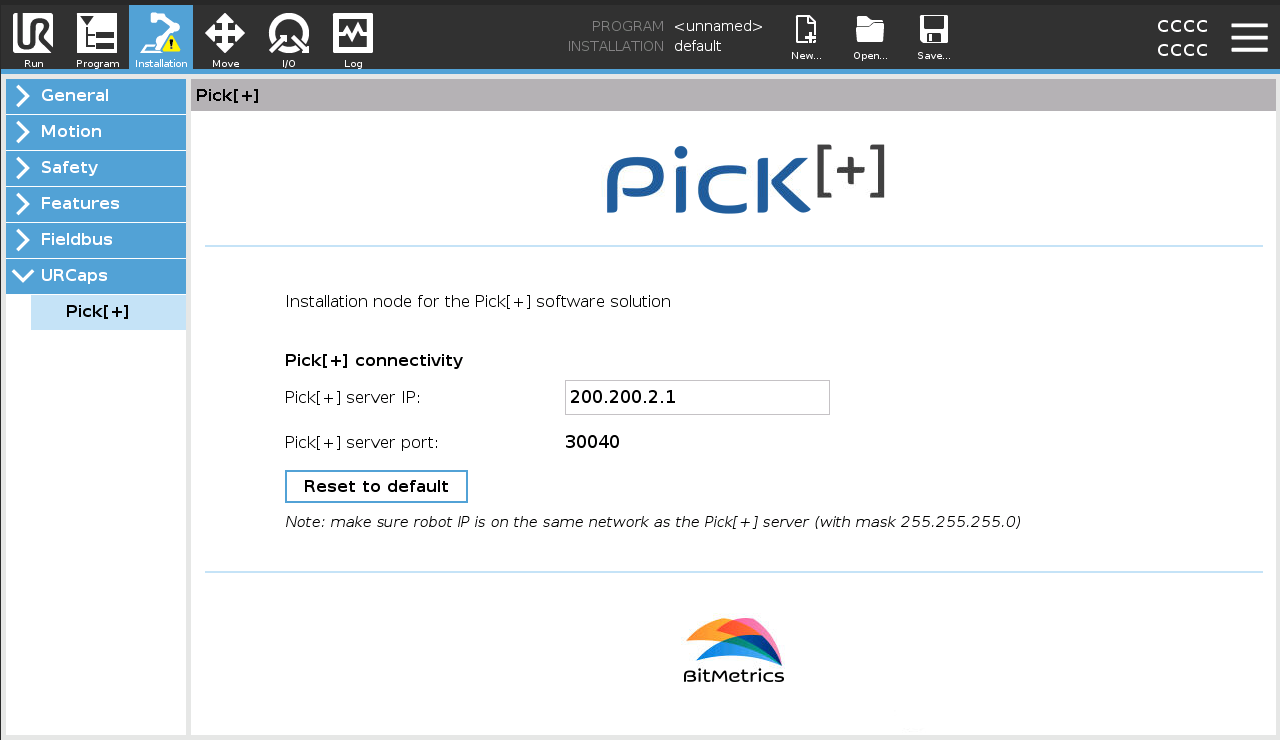
If you have changed the default IP of the Pick[+] Server, you must also configure it on the URCap configuration:
- In the UR Teach Pendant, access the Installation tab
- Go to URCaps and click Pick[+]
- Here you can change the Pick[+] Server IP