Execute K-Pick
Pre-execution checks
Follow these steps before proceeding with application execution.
-
Check application settings: Make sure that hardware and calibration settings are as required. See Settings to check / edit camera settings and lights connection.
-
Check environment: Make sure that both the pick environment and the tool bounding box selected are the desired ones for the application execution. See Environment Setup to define/select boxes or Environments and the Tool collisions box.
-
Check calibration: Make sure the pair camera-robot is properly calibrated before proceeding with application execution. See Calibration if you need to calibrate camera-robot.
Execute K-Pick application
To select a K-Pick application to execute click K-Pick texture and then click Execute K-Pick application on the Homepage.
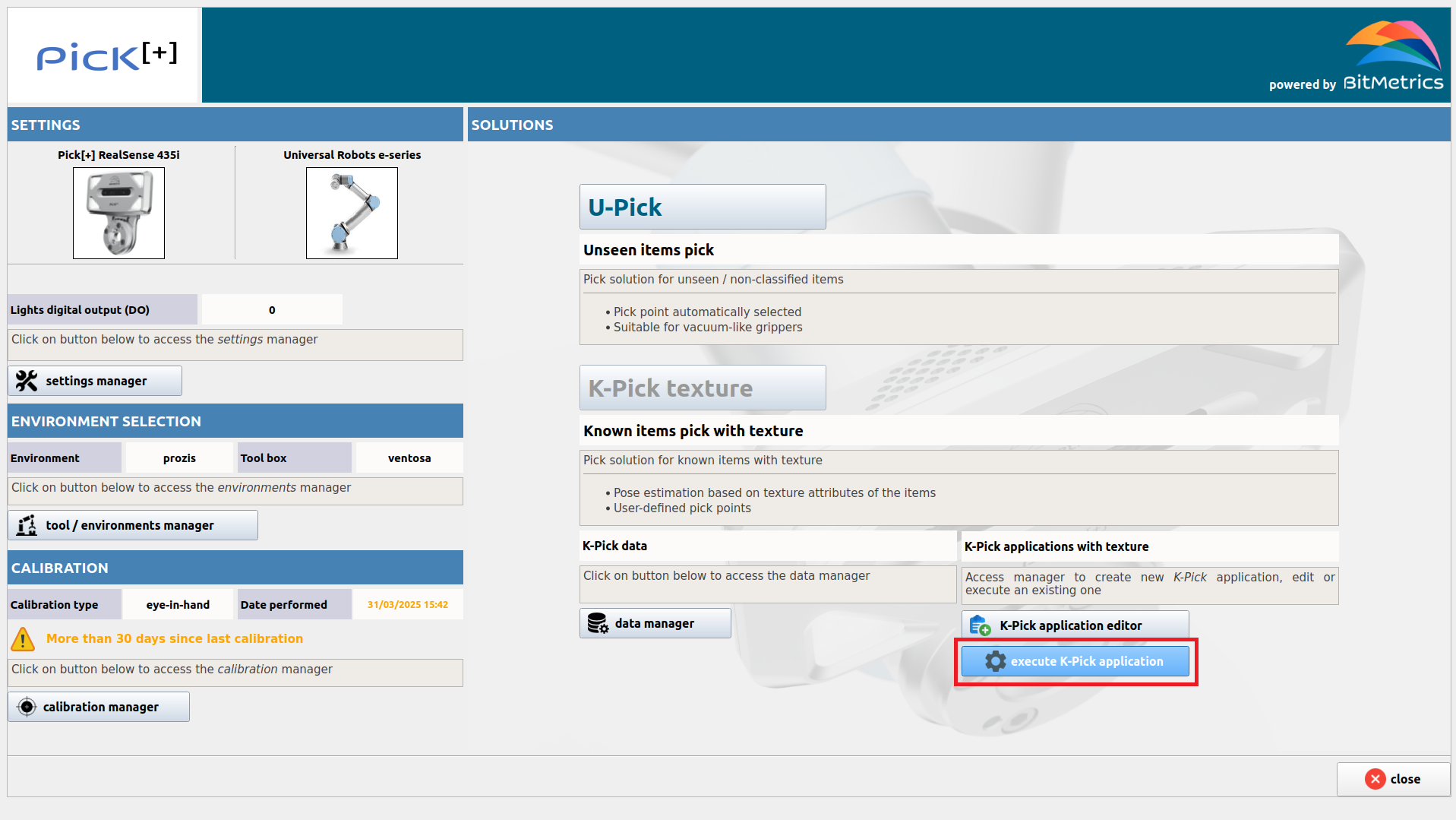
The application pop-up will open with all K-Pick applications in the repository listed.
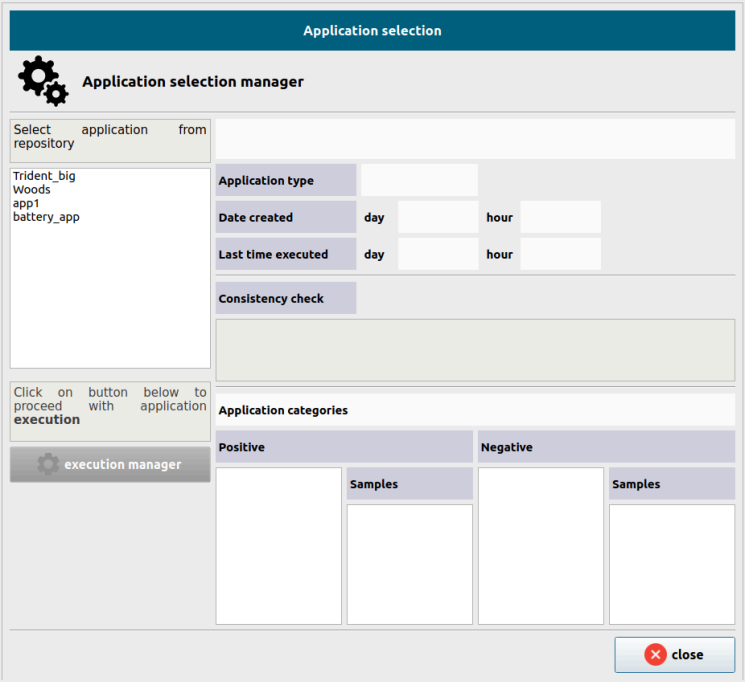
We select the application we wish to execute.
By doing so a consistency check is performed:
A check on the consistency of the application is carried out. We check that:
- The application has been trained and that there is a suitable model for the candidate segmentation.
- Models are present (if required by the type of alignment of the items).
- Picking points on models have been defined (if required by the type of pick of the samples).
A check on the consistency of the execution environment is also carried out. We check that:
- A box environment has been selected.
- A tool bounding box is also selected.
- A calibration exists for the selected camera setting.
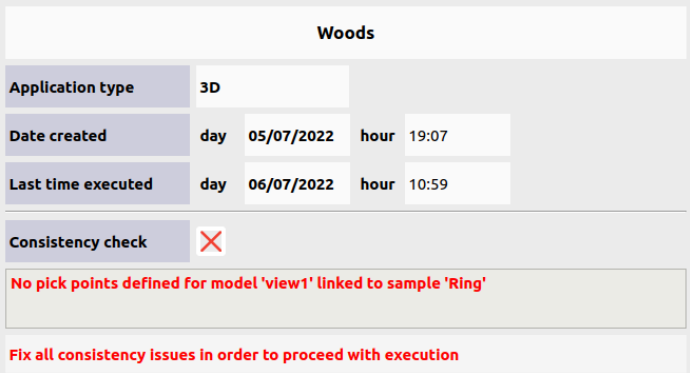
If the check is not passed we need to fix all the issues indicated in order to be able to proceed with execution of the application.
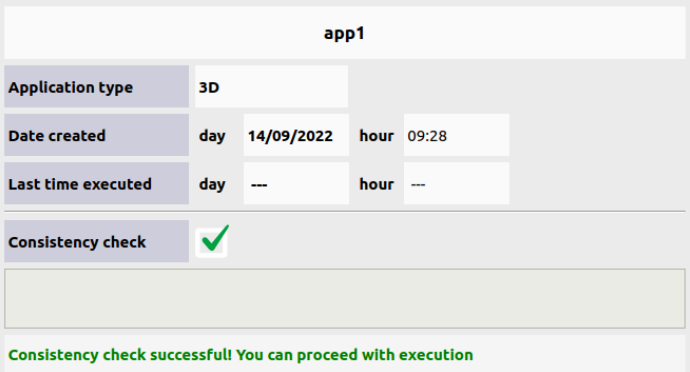
If the check is passed we can proceed with execution by clicking on Execution Manager. By doing so we move to the execution visualization page and carry out two actions in an orderly manner:
- We send all application details to the execution server to configure it.
- We start the server that listens to the robot messages coming from execution.
At this point we can start the robot routine from the robot console.
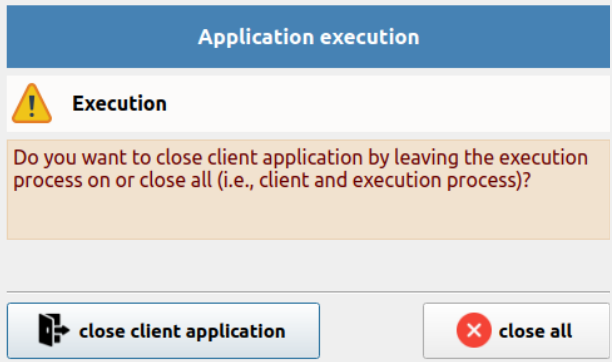
Close client while executing
Both when training and executing an application we can disconnect the client without stopping the server. To do so click on A pop-up will open to offer two possibilities:
- Close client and server (and thus stop the execution and robot server).
- Close only the client application and leave the servers on. In this case, by starting the client again we go back to the execution visualization page if the training has not been finished.